
The NIVAS platform
What NIVAS does today, in detail, grouped under its five pillars: Property Network, Market Intelligence, Distribution & Visibility, Client & Deal Management and Agency Operations. Each capability carries its real status; related features link to each other.
The five pillars
01
Property Network
Bring your listings into your own stock, keep them fresh, and share all or part of it in the common pool every member searches. Co-broke with other agencies, while your own stock stays yours.
One common pool of listings.
Agencies and agents bring their listings into their own stock, one by one or as a whole file, and share all or part of it. Shared listings form one common pool that every member searches, so each import and each new listing grows what everyone finds; those open to co-broke are the ones other agencies can request.
- listings imported
- nearly 30,000 listings imported
Every listing members have brought into their own stock, across NIVAS; each member’s Sheet holds only their own. Count from the NIVAS database, 30 October 2026.
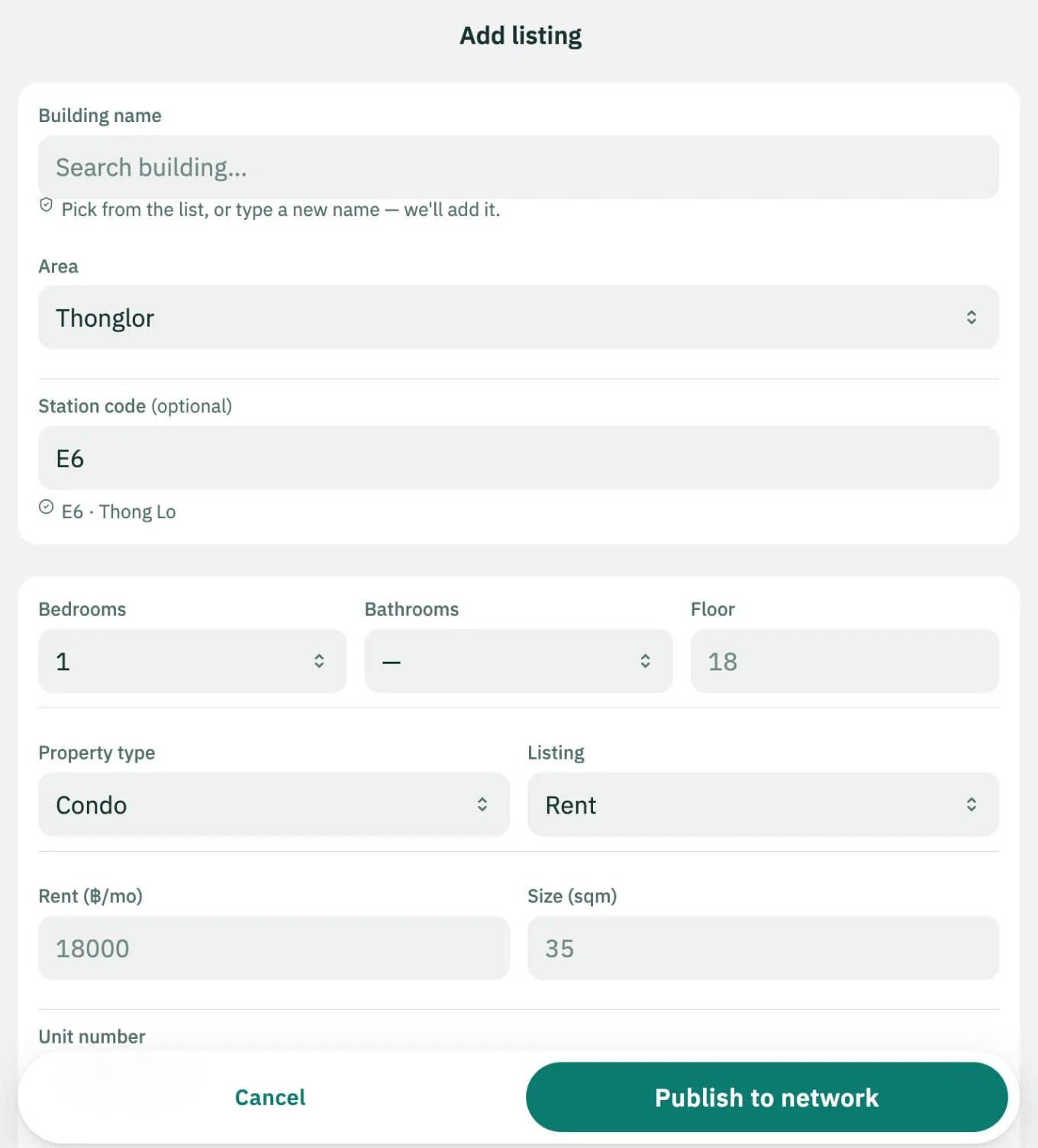
Add listing
One page, not a wizard: building, area, station, rooms, type, rent or sale, price, size, unit, room status, dates and up to 30 photos. Then “Publish to network”.
In the app My stock › Add listing. The listing lands in your own stock, in the Sheet. Pick the building from the list, or type a new name: the listing is held for review until that building is added.
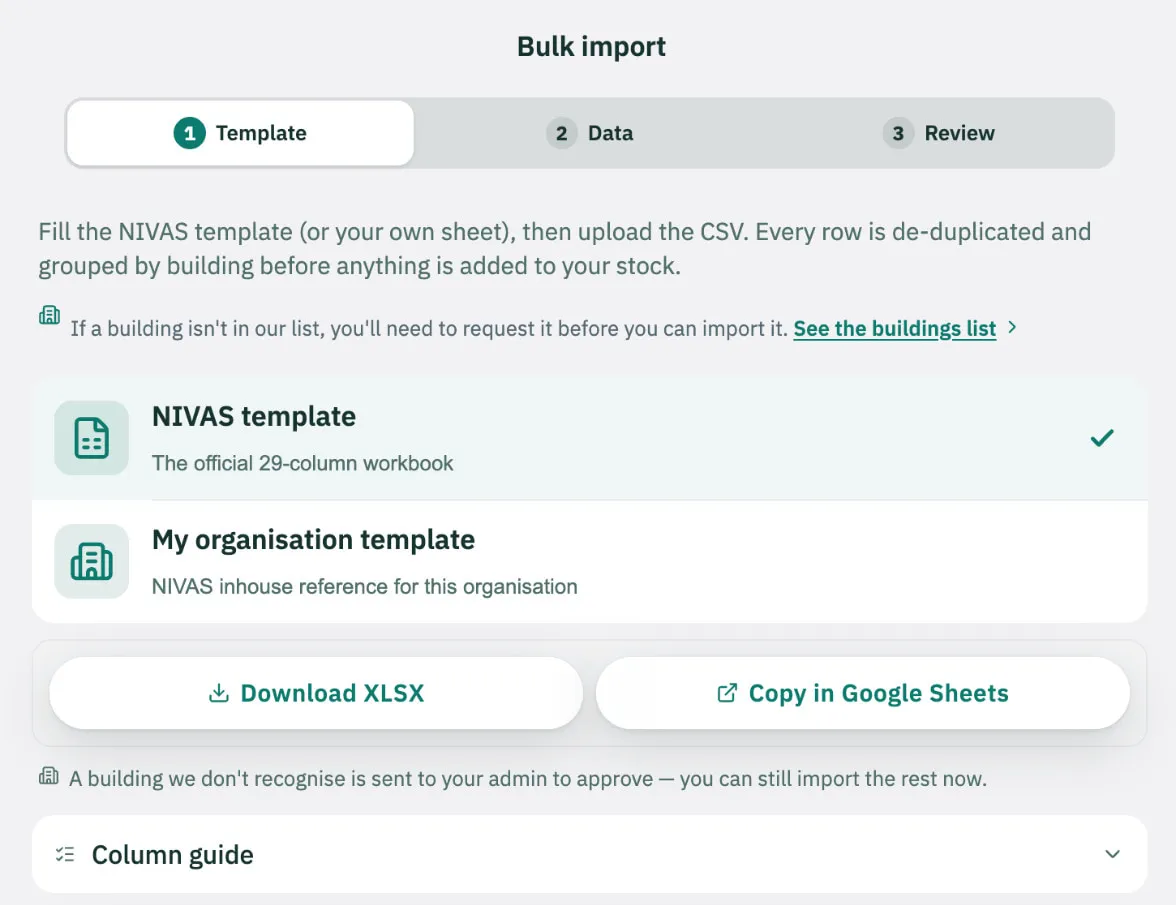
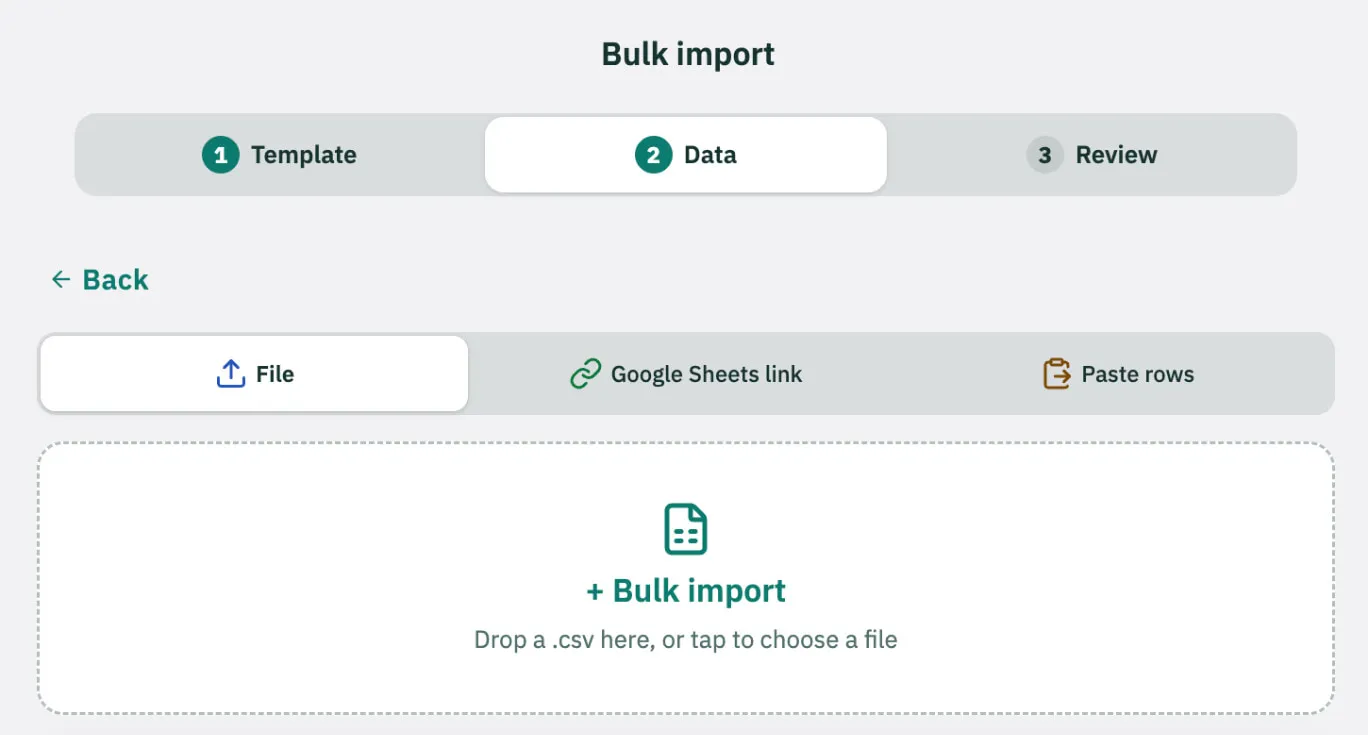
Bulk import
Three steps: Template · Data · Review. Start from the NIVAS 29-column template, then bring a CSV or XLSX file, a Google Sheets link or pasted rows. Rows are grouped by building first; a row that matches a listing already there is marked “Duplicate” and skipped, never deleted.
In the app My stock › Bulk import. Imported rows land in your own stock; a building the app does not recognise is reviewed before it is added, and the rest still imports.
Possible copies, held for review
NIVAS checks every listing you add or import against the same building and unit, in your own stock and in the shared pool. A possible copy is never deleted: it is held “To review” with the ID of the listing it may duplicate, so your team decides.
In the app Add listing and Bulk import. A match with another agency’s live listing is flagged without naming that agency; the agency reviews what is held and can Restore or Reject it.
Shared by default, private when you choose
Each listing is shared in the pool by default. Switch any listing, or a selection, to “Private — only your team sees it.”; “Show in the pool” shares it again.
In the app Per listing in the Sheet’s Pool column, on the listing card or from the bulk bar. The agency sets its default for new listings in Settings › Shared pool, and can apply it to every listing at once.
Freshness you can read
Every listing shows when it was last checked with the owner, how many days ago (colour-coded) and its room status.
In the app The Sheet’s phone key logs the call. “UPD” counts the days since: green up to 45, amber up to 90, red beyond.
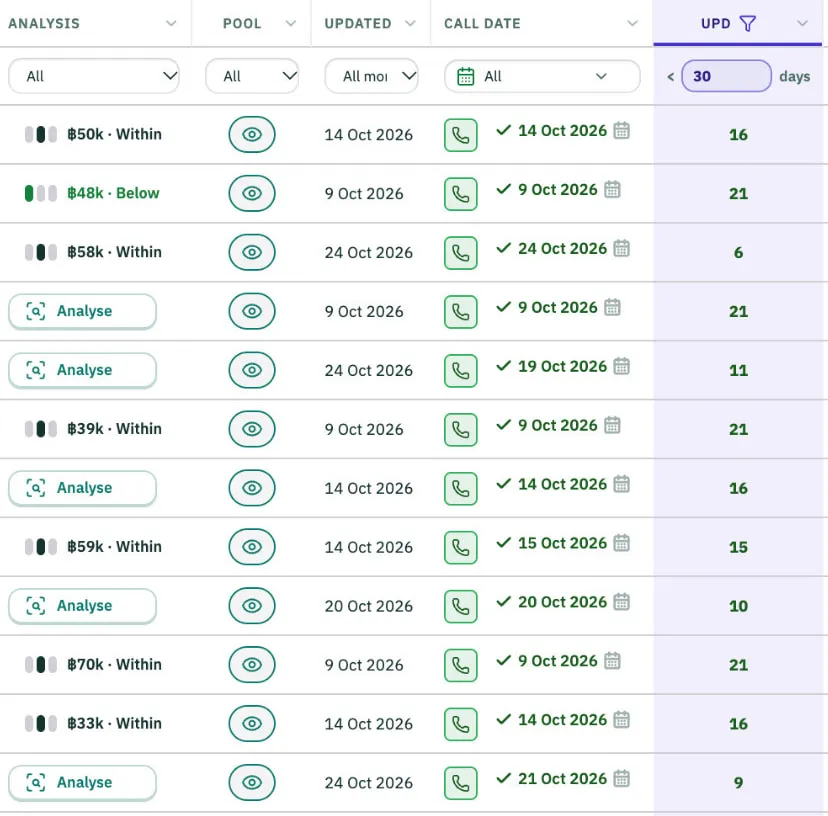
Rolling out: Live with the founding agency today, opening to invited users. The Analysis column shows Bot Analysis, which is rolling out.
Related guidesThe Common Pool· Guides coming soon
Share without giving away the owner.
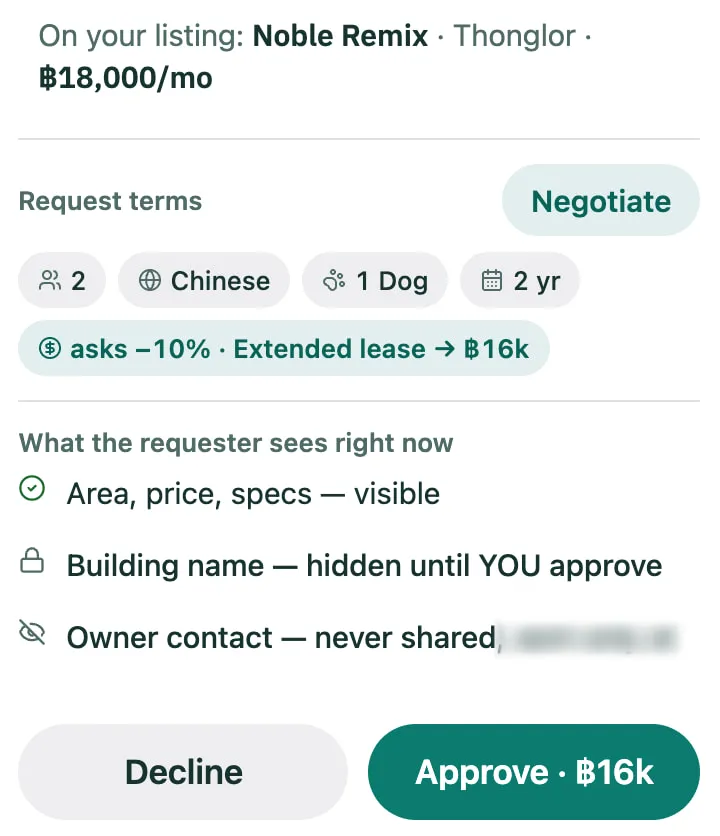
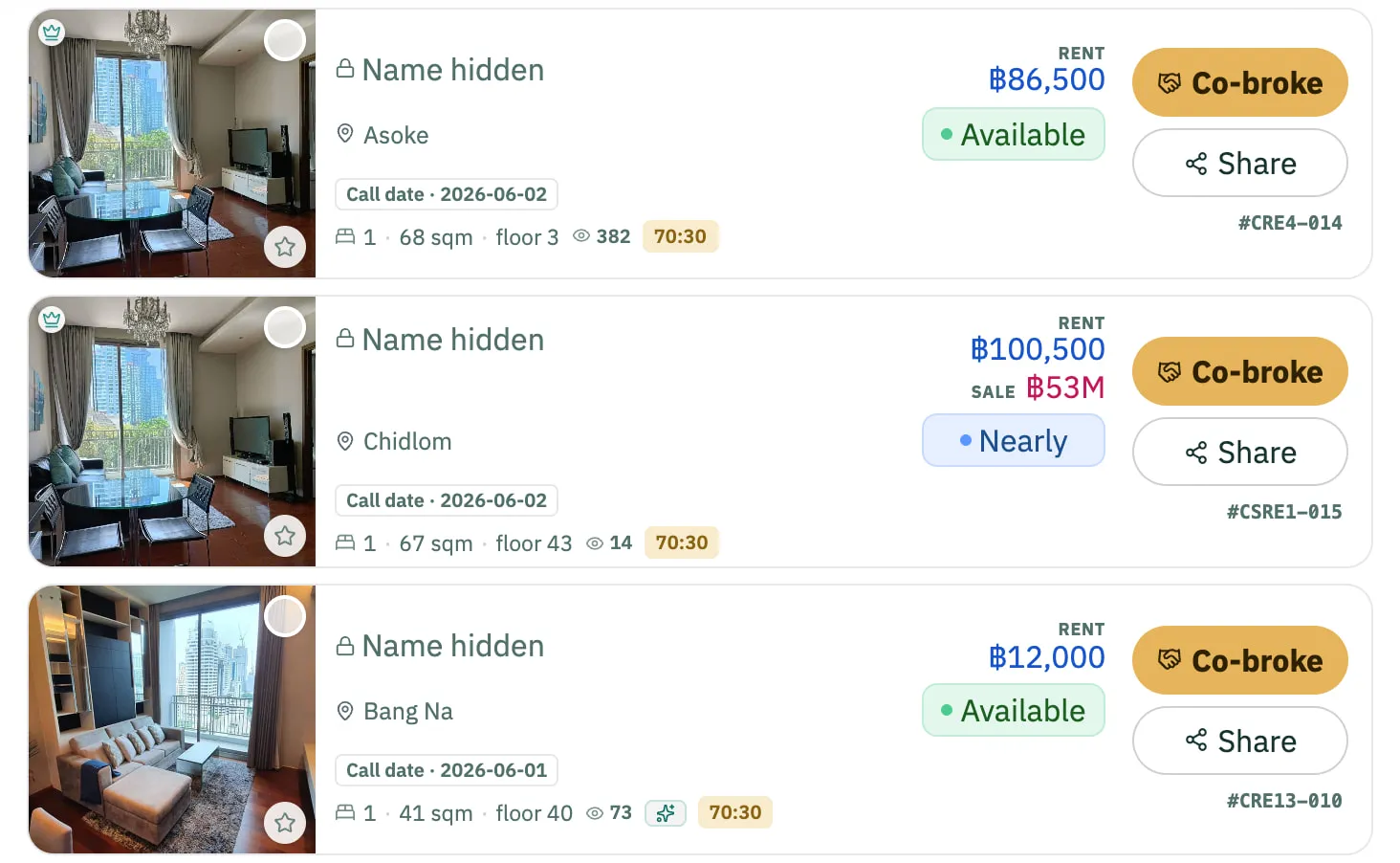
Shared listings can be co-broked: the building and the unit stay hidden until you approve, and the owner’s contact is never shared through NIVAS.
Co-broke requests
Other agents find your shared listing and send a co-broke request with its terms — for a rental: lease duration, occupants, pets, client nationality and any discount asked; for a sale: payment and purchase timeline. You Negotiate, Decline or Approve.
In the app Requests arrive in My stock › Co-broke requests and in the notification bell. An unanswered request expires after 14 days by default; the requesting agency can set 3, 7, 14 or 30 days.
Related guidesSearch & Co-broke· Guides coming soon
Owner posts, reviewed by a person.
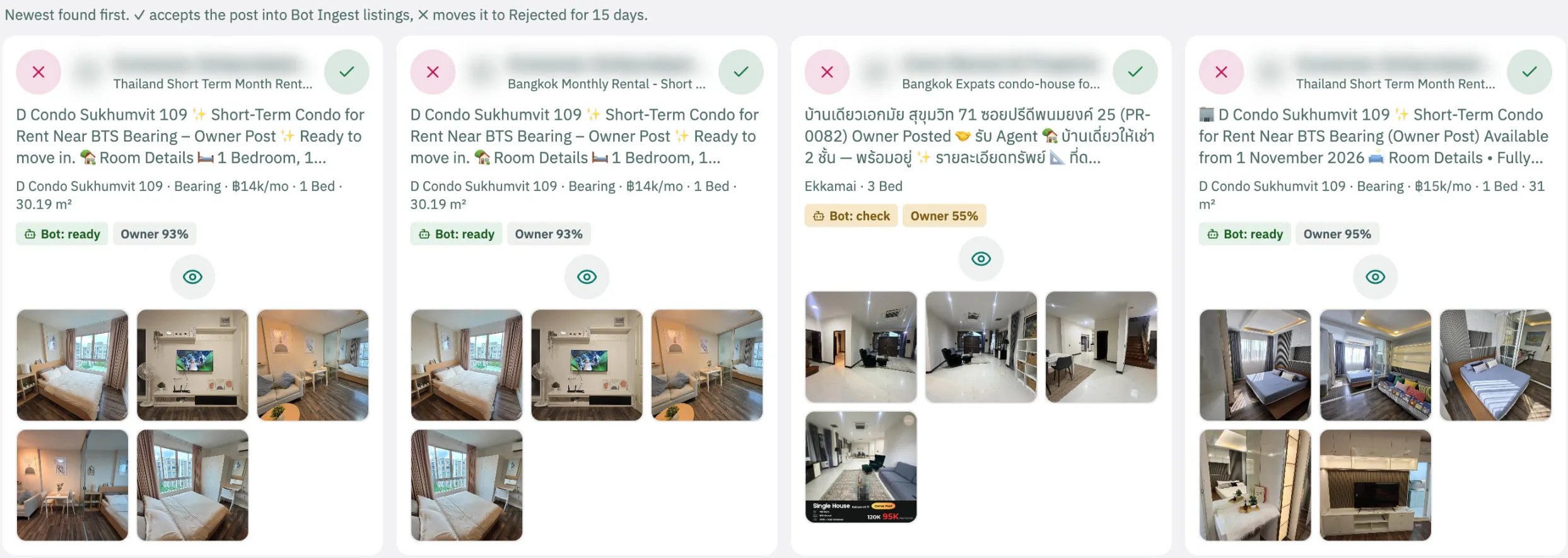
Owner posts found on Facebook, each reviewed by a person before it is accepted, and kept in a separate pool from imported listings.
The common pool is not built from these posts: it is built from the listings members add or import and choose to share.
Review of owner postsRolling out: Live with the founding agency today, opening to invited users.
Each post shows its group, the text, building · price · beds, an “Owner N%” likelihood and its photos. A person accepts it (✓) or rejects it (✗, kept 15 days in Rejected).
A separate poolRolling out: Live with the founding agency today, opening to invited users.
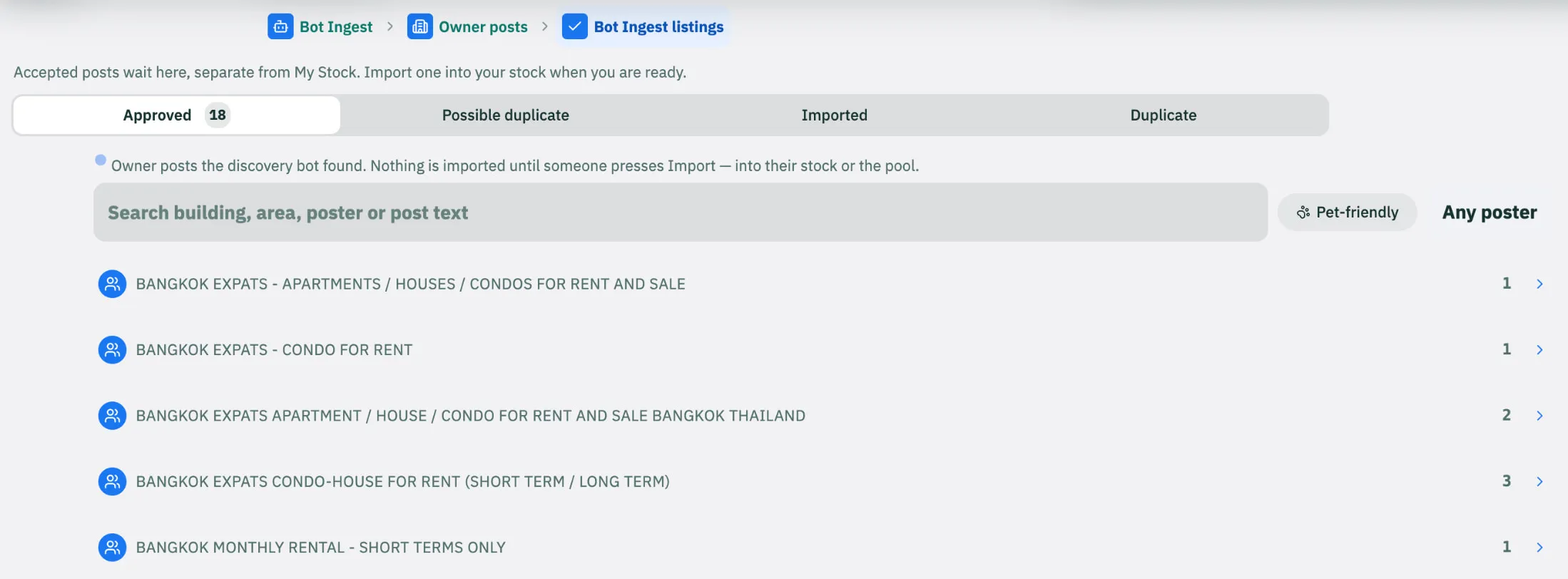
Accepted posts wait in Bot Ingest listings, separate from your stock. Importing one into your stock or the pool is a deliberate click.
Related guidesBot Ingest & Bot Analysis· Guides coming soon
02
Market Intelligence
Search, buildings, asking-price position and the Map: understand the market before making a move. Asking prices, never transaction prices.
The NIVAS Bangkok index follows the asking sale price per m² of Bangkok condominiums, month by month since June 2019, as one continuous series. A monthly series. About the index
Search the network, quickly or in detail.
Search is the network: the founding agency’s listings and every listing members choose to share, including those other agencies open to co-broke. Your own shared listings appear there too; your whole stock, private listings included, is in your Sheet. Smart groups and chips for a quick answer, More filters for a precise one.
Search the common pool
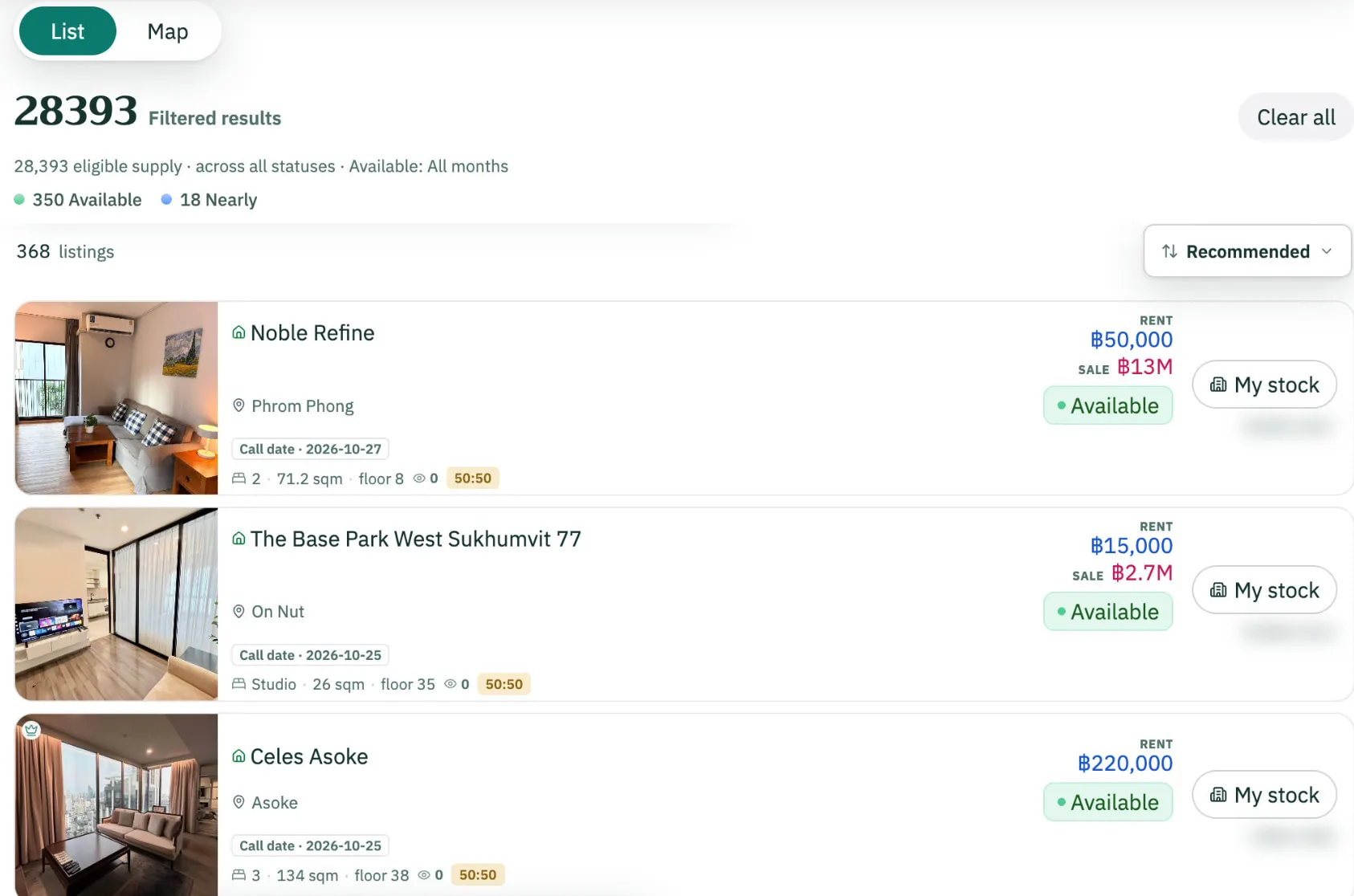
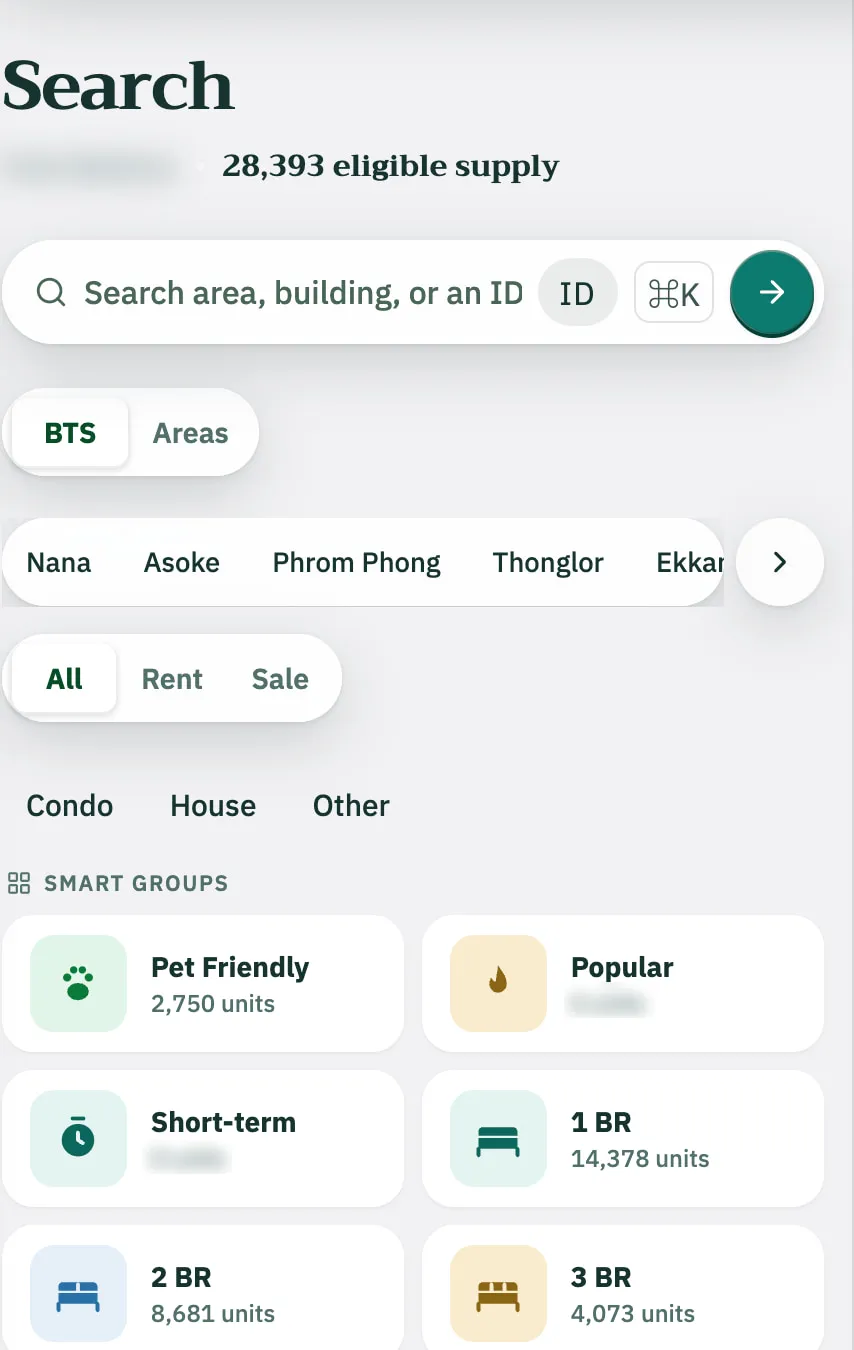
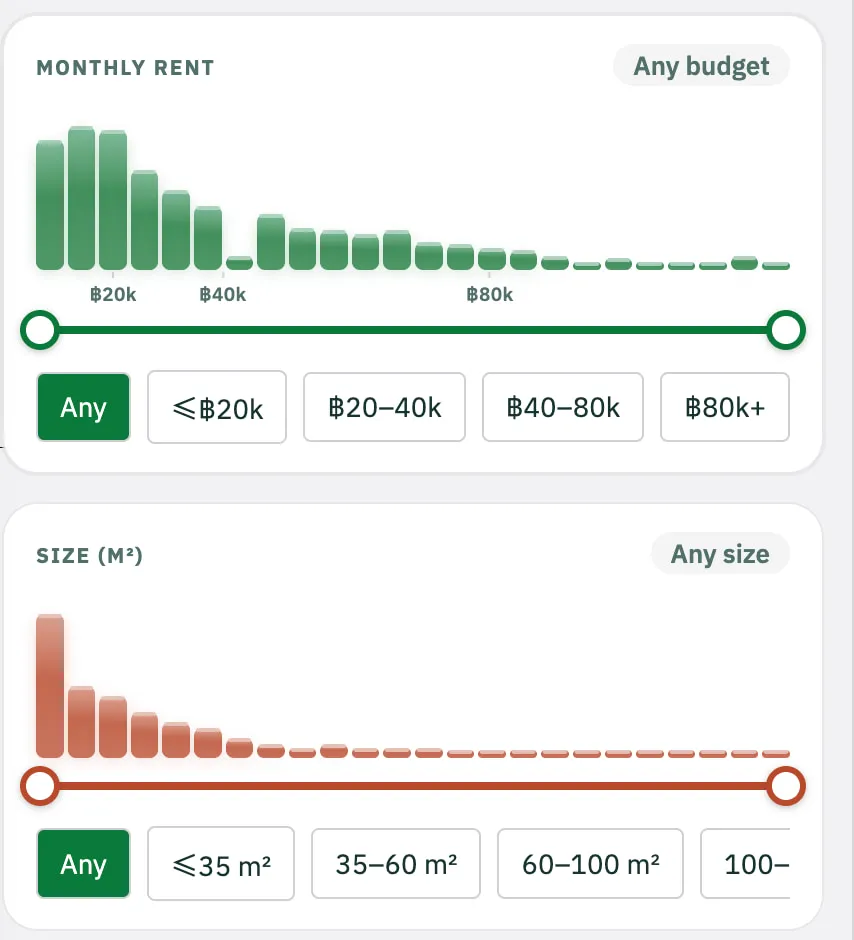
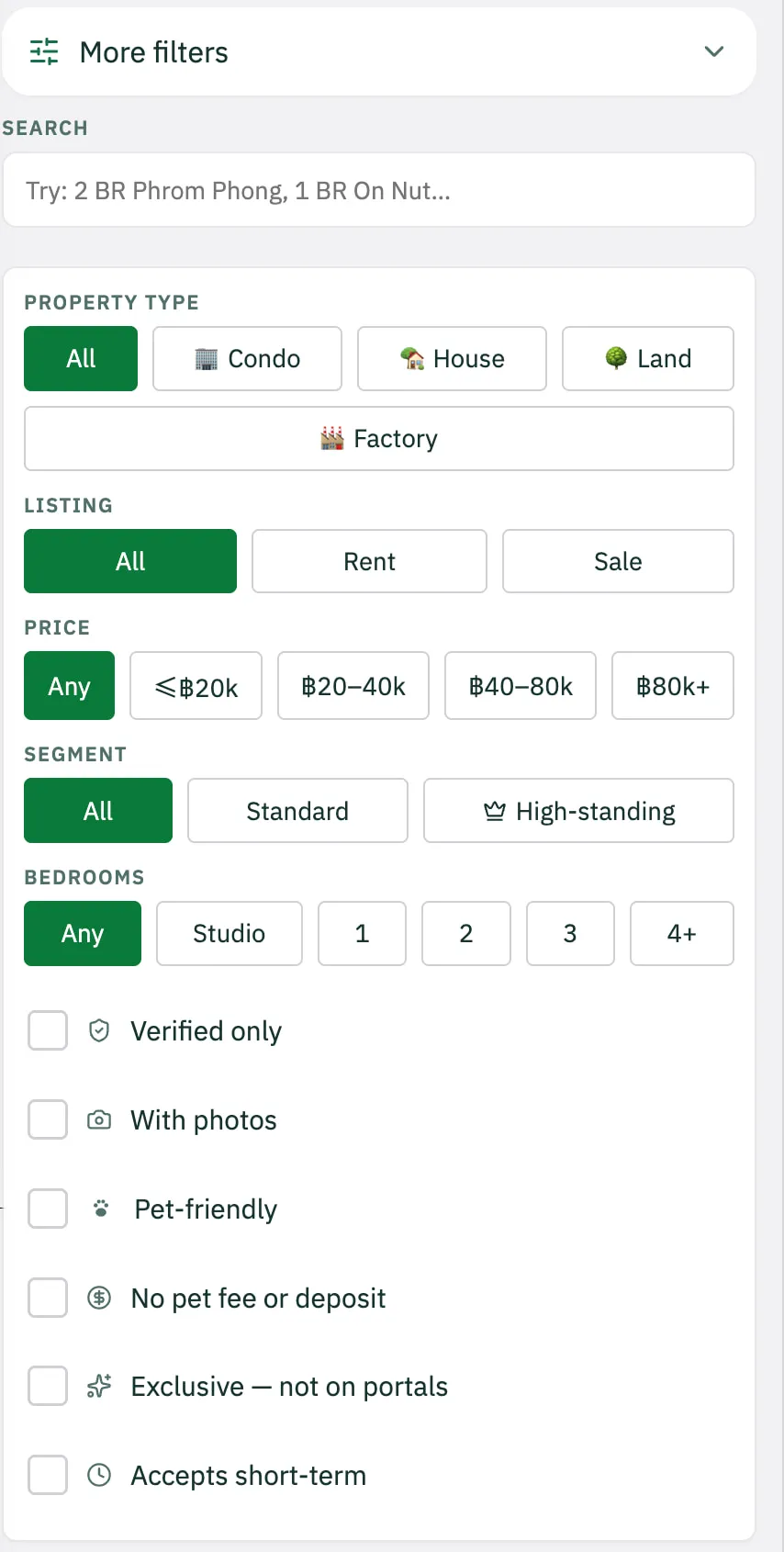
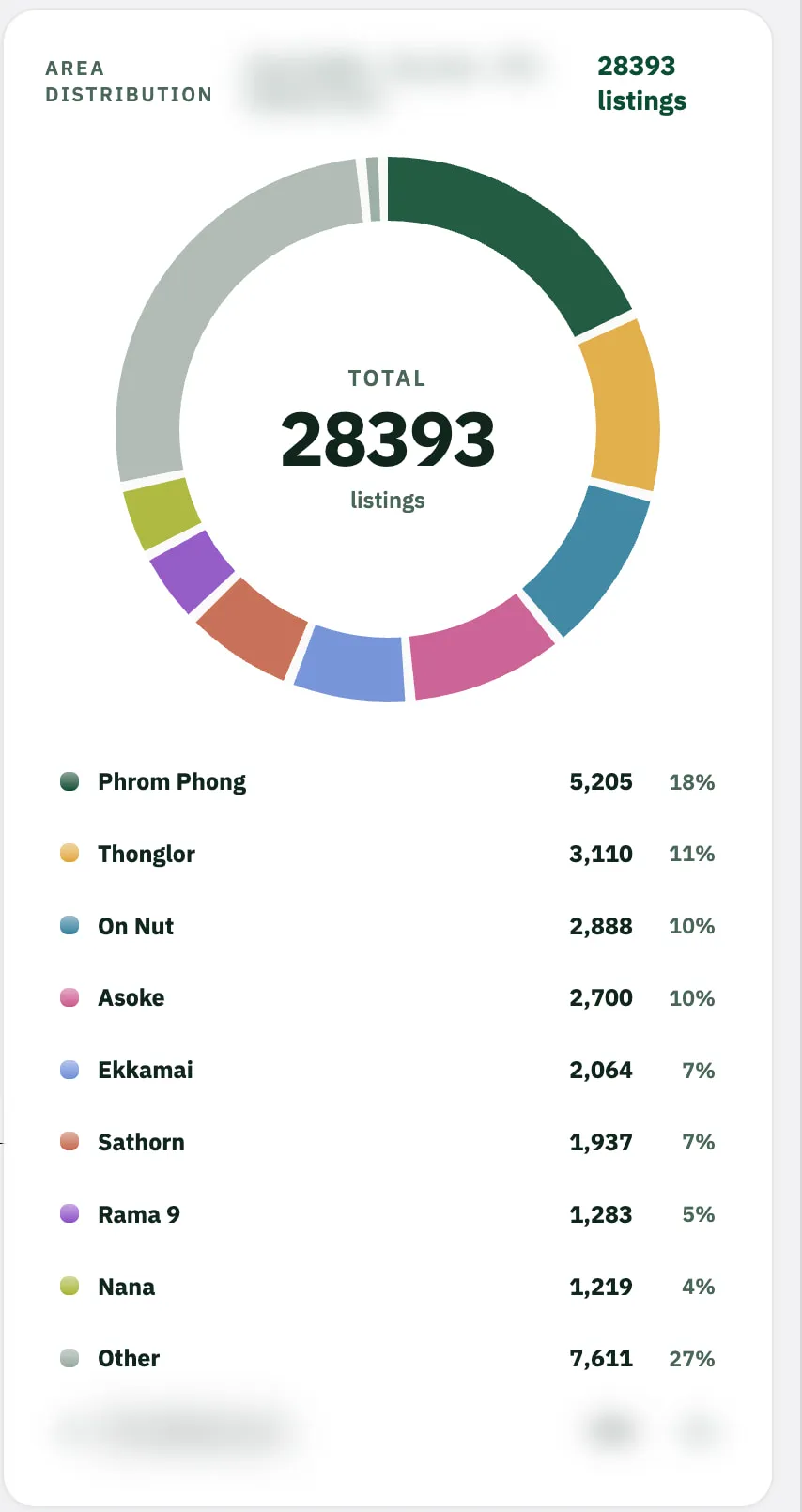
One search across the common pool: the founding agency’s listings and every listing members choose to share, yours included. Quick search with Smart groups (Pet Friendly, Popular (the most viewed), Short-term, 1, 2 and 3 BR) and chips — BTS or Areas, rent or sale, type, and rent and size histograms with sliders — or advanced with More filters: property type, listing, price, segment, bedrooms, with photos, pet-friendly, no pet fee or deposit, exclusive (not on portals) and accepts short-term. An Area distribution donut shows where the listings are; each listing shows its call date.
In the app Search. Results open on the listing; from there you request a co-broke.
Related guidesSearch & Co-broke· Guides coming soon
Every building, with its facts and its prices.
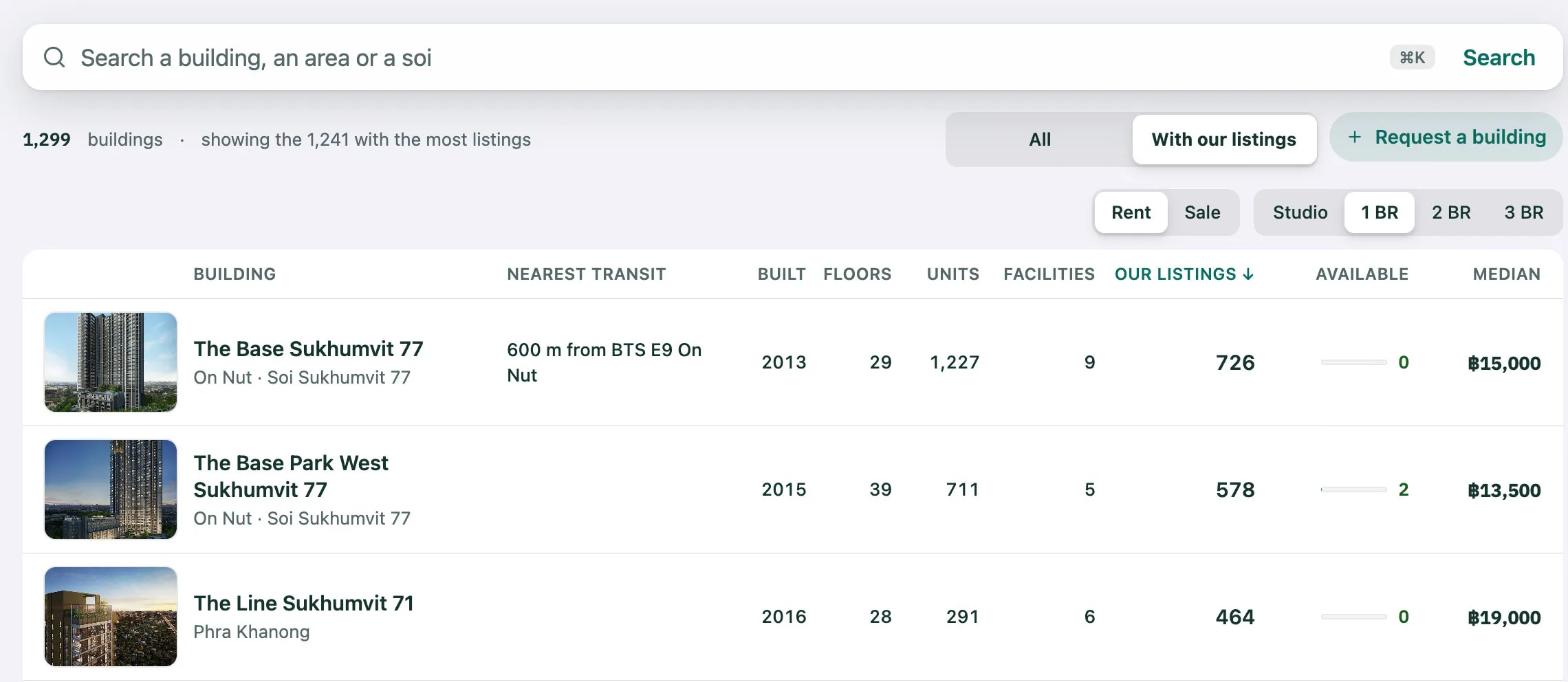
Every building in one list, each with its own page. Live for every signed-in user.
The buildings list
The buildings list, with Rent / Sale and Studio, 1, 2 and 3 BR filters, and for each building the year built, floors, units, facilities, your listings, available units and the median price.
In the app Home › Buildings.
A page per building
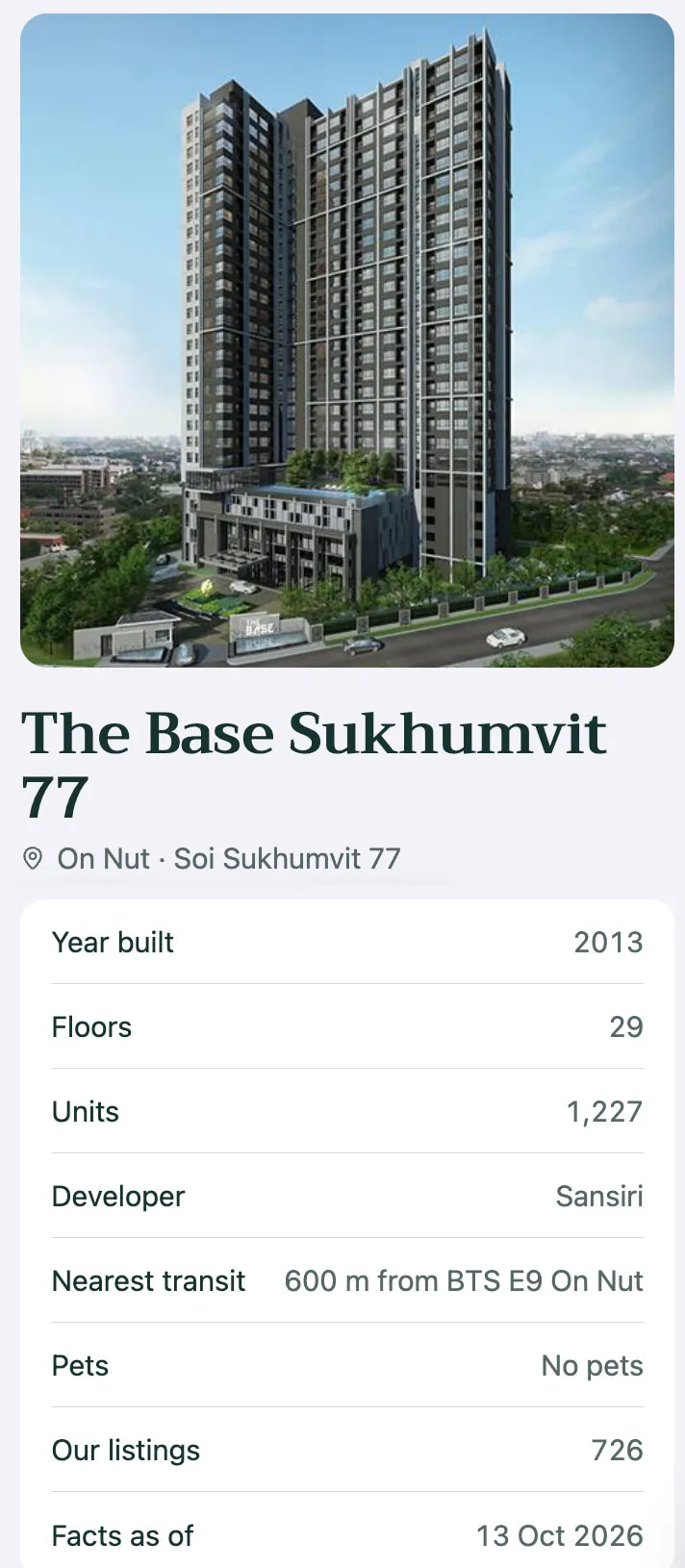
Photo, area and soi, year built, floors, units, developer, nearest transit, pets, your listings there and facilities.
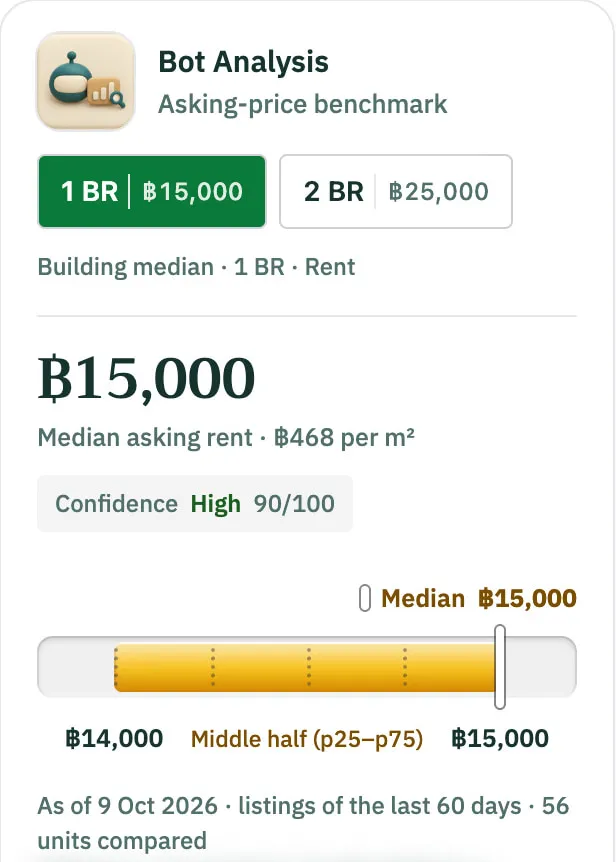
Bot Analysis per buildingRolling out: Live with the founding agency today, opening to invited users.
On the building page: the median asking price by bedrooms and rent or sale, the middle half (p25–p75), the number of units compared and a confidence level. Asking prices, never transaction prices.
Rolling out: Live with the founding agency today, opening to invited users. Live with the founding agency today, opening to invited users.
Related guidesBuildings· Guides coming soon
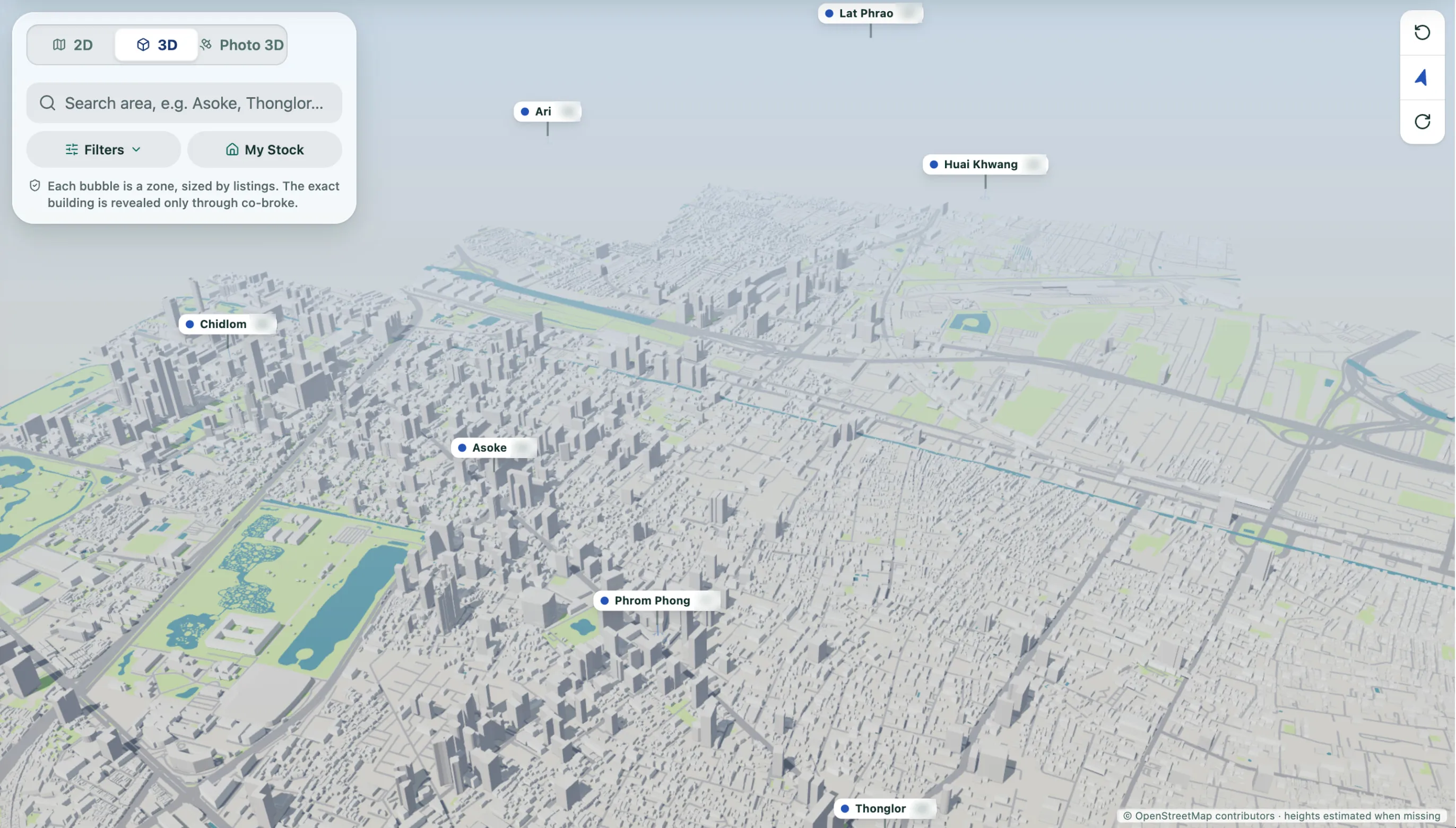
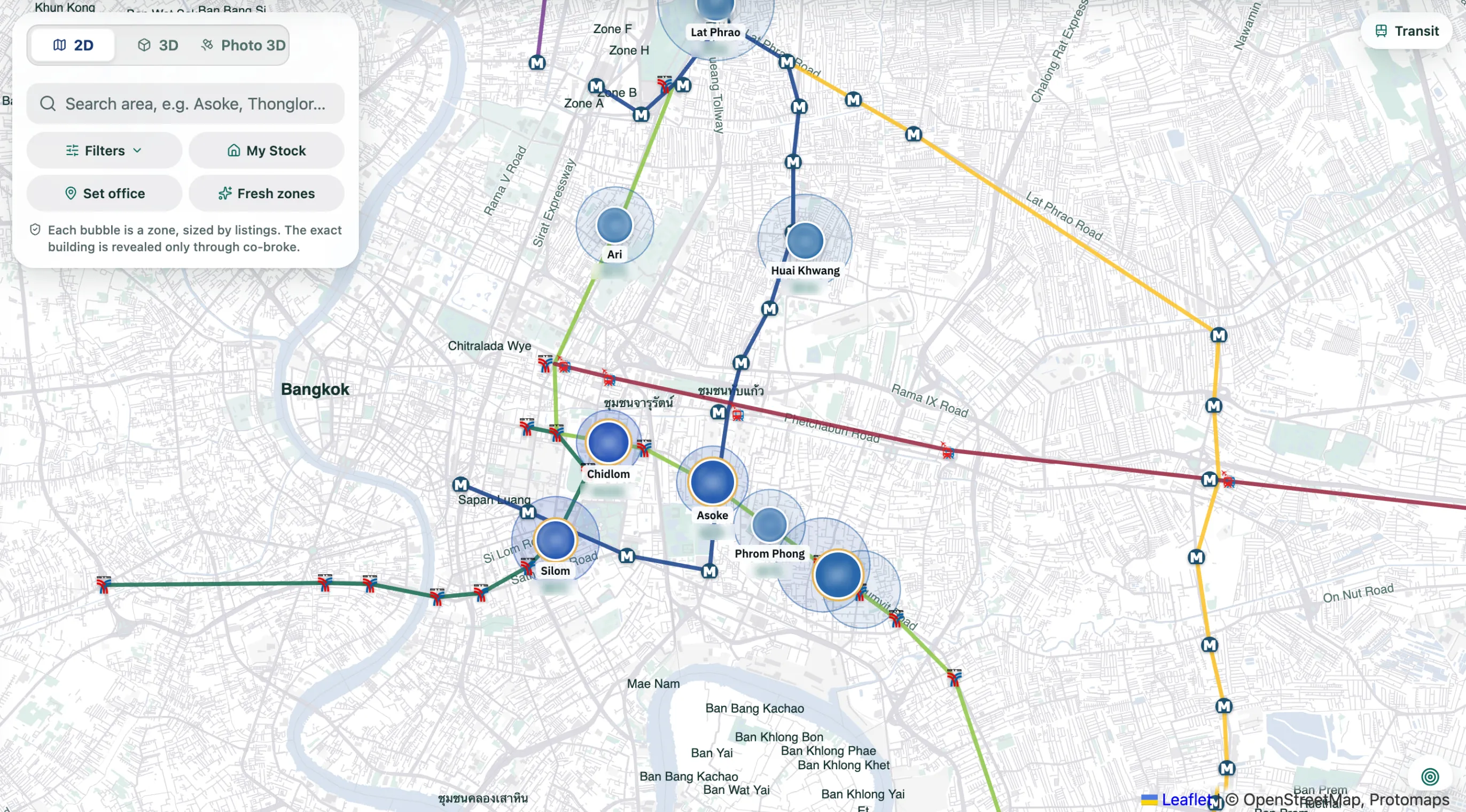
Bangkok in three views: 2D, 3D and Photo 3D.
Zones sized by listings, your own listings as pins, and in 2D transit lines, Fresh zones and distances from a client’s office. Other members’ listings appear only within their zones, never as pins.
Map
Filters narrow what the zones count, in every view. Precise pins are only ever your own listings (My Stock).
In the app Home › Map, in the Apple UI (the app’s default style). Transit, Fresh zones (your own new listings) and Set office are 2D tools; Photo 3D looks straight down on photorealistic imagery.
Related guidesGetting Started· Guides coming soon
Where an asking price stands.
Price position per listing and per building, by bedrooms and rent or sale.
Price position per listing and per buildingRolling out: Live with the founding agency today, opening to invited users.
Where an asking price sits against the median and the middle half of comparable asking prices, by bedrooms and rent or sale, with a confidence level. In the Sheet’s Analysis column and on each building page. The Bot Analysis engine reads public asking prices on a regular schedule, ahead of any request, so building analyses draw on recent listings.
In the app Today with the founding agency; opening to invited users.
Related guidesBot Ingest & Bot Analysis· Guides coming soon
03
Distribution & Visibility
Post your own listings: select them in your Sheet, prepare in Ultimate Post, distribute with the NIVAS Bot from your own computer, and present your listings on your own page and card.
The complete sheet, already built in.
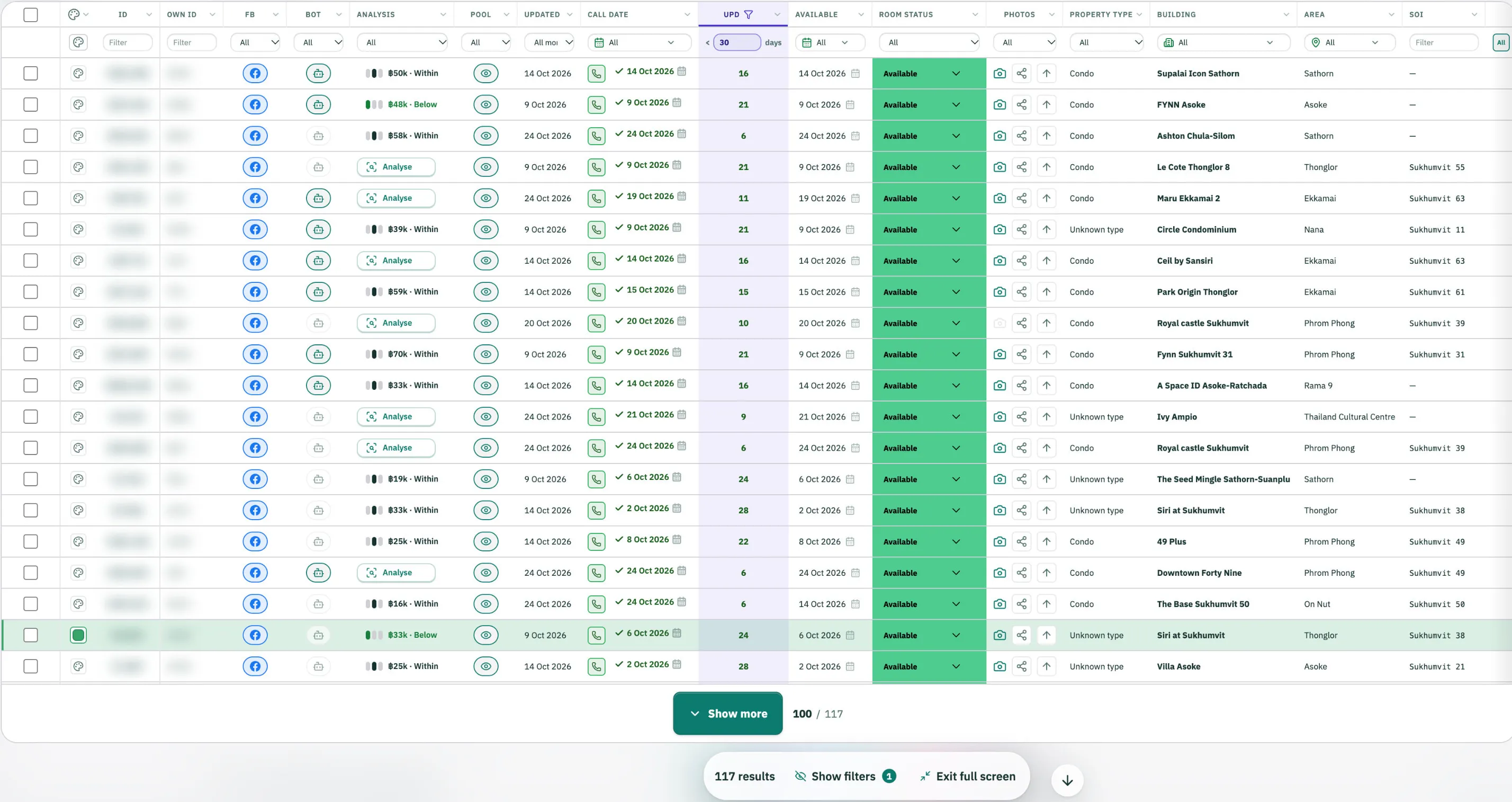
Agents run their stock in spreadsheets. In NIVAS the sheet is already there and complete: one row per listing, a filter on every column. It holds your own stock: the listings you or your agency added or imported; what other members share is in Search.
- Filters on every column, incl. “UPD < N days”
- Sort
- Group by column
- Show, hide and reorder columns
- Full screen
- Size 50–200 %
- Export CSV
- Shared team layout
Filters, sort and group
Filter any column — ID, FB, Bot, Analysis, Pool, Updated, Call date, UPD days, Available, Room status, Photos, Property type, Building, Area, Soi… — including “UPD < N days”. Sort ascending or descending, or group by a column.
In the app My stock › Sheet.
Columns and layout
Show, hide and reorder columns, go full screen, size the sheet from 50 % to 200 %, export CSV. The agency can set a shared default layout; anyone can keep a custom one.
Multi-select and the bulk bar
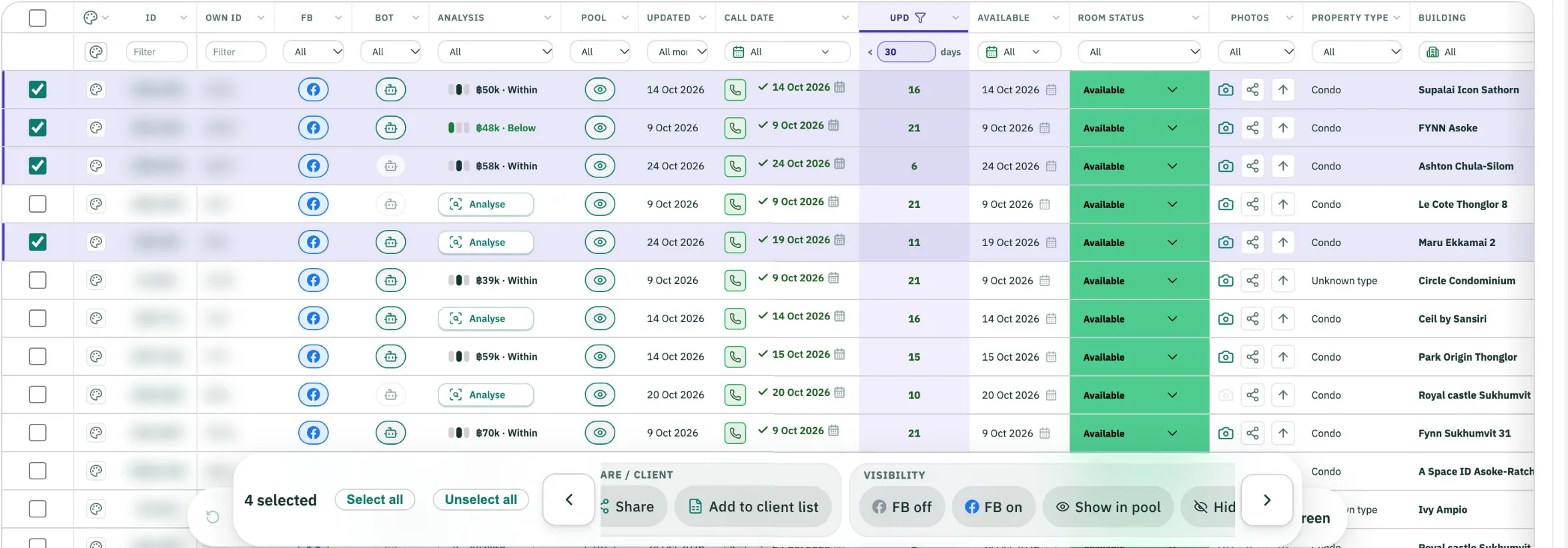
Select rows and a bulk bar appears: set the status, available date or Pet; add to a client list; FB on or off, show in or hide from the pool, Bot on or off.
Switch listings to Bot
Switch your own listings to Bot in the Sheet, then post them to your chosen Facebook groups.
In the app The Bot button on each row, or “Bot on” in the bulk bar, puts listings in Ultimate Post’s Bot tab, ready for a campaign; the tab shows them while FB is on. Every listing starts with Bot off.
Cards view
Prefer pictures? The same stock switches to Cards: photo, building, rooms, size, floor, Rent/Sale status, dates, prices, the FB and Bot marks (switched in the Sheet) and Co-broke.
In the app My stock › Sheet / Cards.
From the Sheet to Facebook groups in a few clicks.
- 1Bot button — Tap the Bot button on a row: the listing goes to Ultimate Post’s Bot tab. Grey means it is not in it.
- 2Several at once — Tick rows, or Select all, then Bot on in the bulk bar.
- 3Post to your groups — Choose the groups and a template; the NIVAS Bot posts.

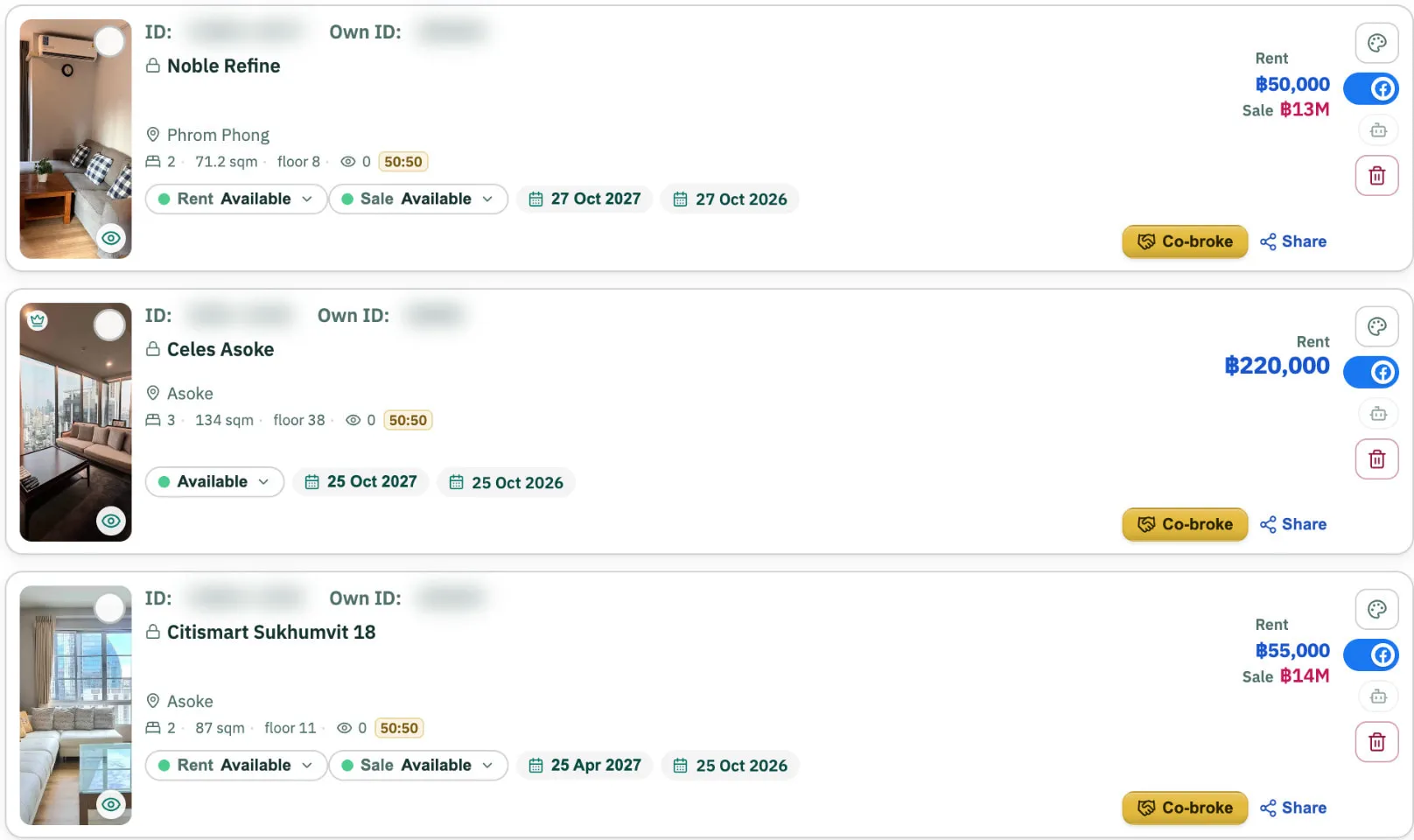
Rolling out: Live with the founding agency today, opening to invited users. The Analysis column shows Bot Analysis, which is rolling out.
Related guidesThe Sheet· Guides coming soon
Your listings in Facebook groups, posted from your own computer.
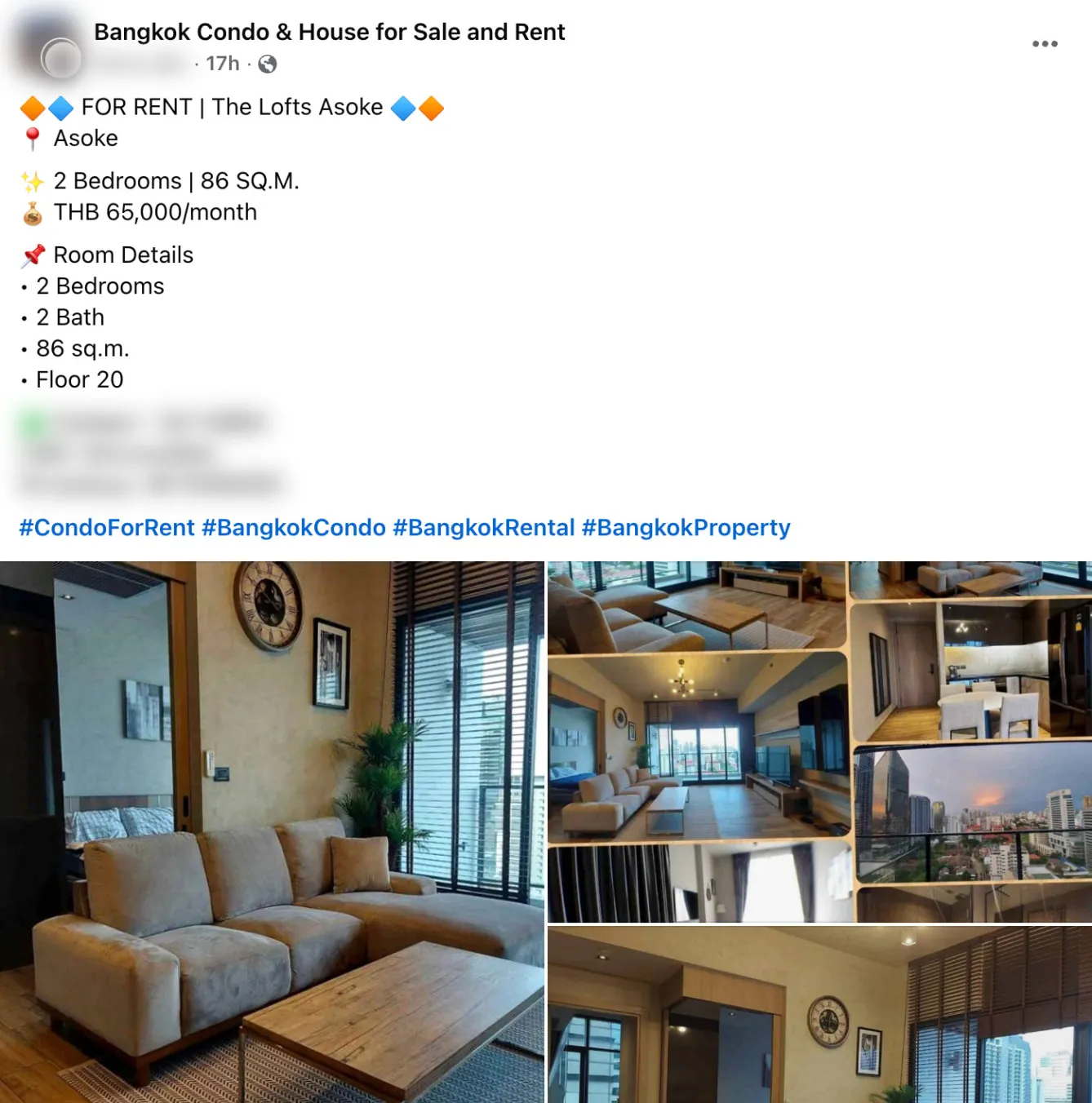
Ultimate Post prepares the campaign from your own stock: your listings, the groups and a template, with a live Facebook preview. The NIVAS Bot, a small app on your own computer, posts it with your own Facebook account.
more than 150 posts / 10 minA figure published by NIVAS for ULTRA mode.
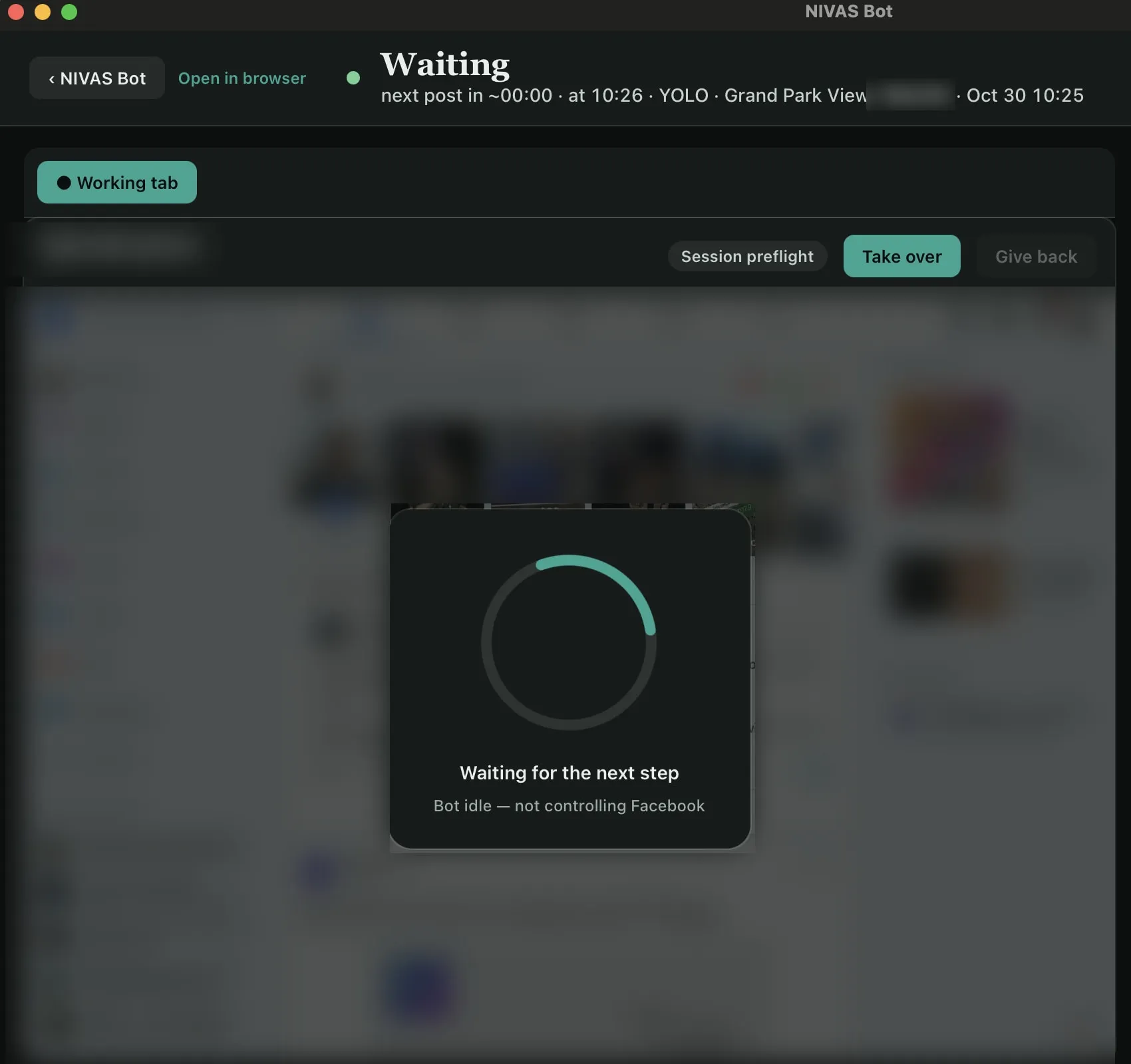
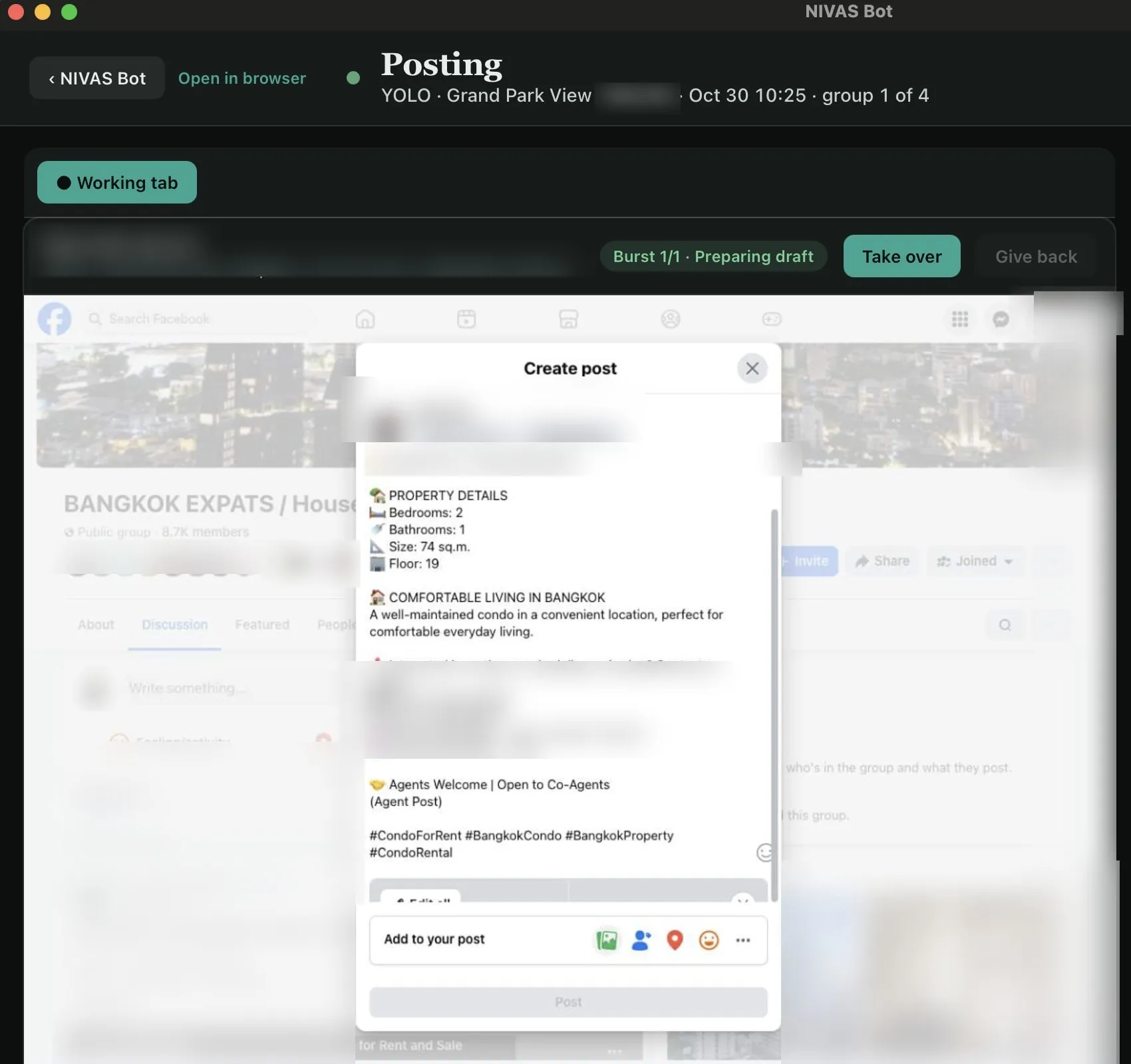
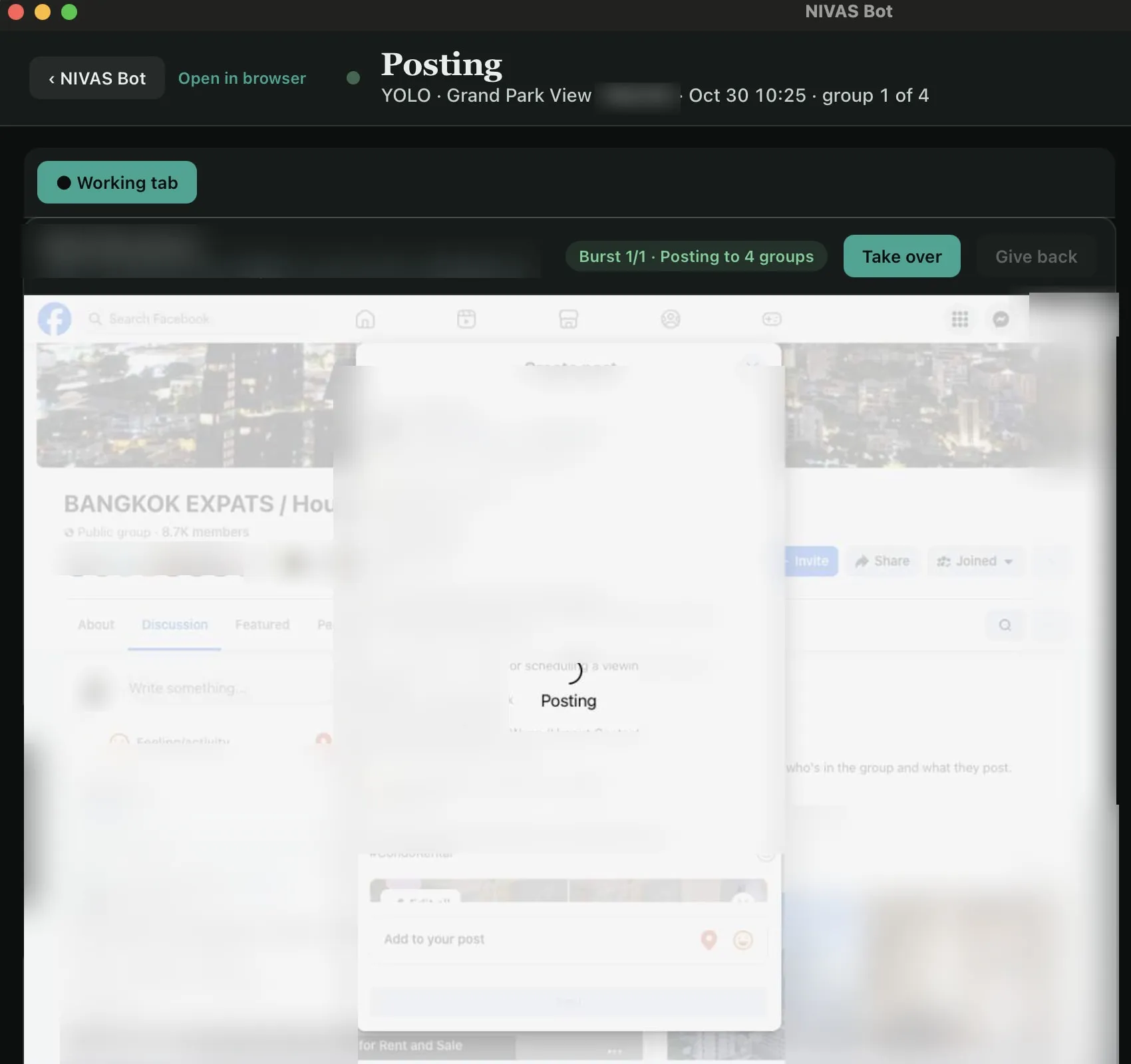
How the NIVAS Bot works
You prepare the campaign in Ultimate Post. The NIVAS Bot, a small app on your own computer, publishes it with your own Facebook account.
On your computer
Mac (macOS 13 or newer, Apple silicon or Intel) or Windows 10/11 64-bit. For invited members; updates happen inside the app.
In your hands
One word tells you what it is doing; Pause it or open NIVAS from the same window. It only posts campaigns.
Your groups, your contacts
It posts in the groups your account already belongs to and never joins a group. Templates can print the posting account’s LINE and WhatsApp.
Download NIVAS Bot
Available to invited members
- Mac · Apple silicon.pkg · macOS 13 or newerYour systemDownload NIVAS Bot for Mac · Apple silicon
- Mac · Intel.pkg · macOS 13 or newerYour systemDownload NIVAS Bot for Mac · Intel
- Windows.exe · Windows 10/11, 64-bitYour systemDownload NIVAS Bot for Windows
NIVAS Bot is for invited members: log in, or request an invitation.
Setup, in five steps
- 1Pair this computer
- 2Put Facebook in English (US)
- 3Log into Facebook
- 4Yes, this is my account
- 5Done — the bot is on
Ultimate Post › Post › YOLO
- 01Account
- 02Listings
- 03Groups
- 04Template
- 05Post
Four ways to post
- YOLO
- Pick listings, groups and a template, then launch.
- ULTRA
- A high-volume burst of posts.
- Custom
- Every setting in your hands, one listing.
- Marketplace
- List on Facebook Marketplace.
Ultimate PostPilot: Live with the founding agency and invited testers. Not self-service yet.
Choose listings from your own stock (the Bot tab holds those you switched to Bot in the Sheet), groups and a template; the preview shows the post as Facebook will. Modes: YOLO, ULTRA, Custom and Marketplace.
In the app Ultimate Post › Post. YOLO goes Account › Listings › Groups › Template › Post. The listings come from My stock: add or import them first.
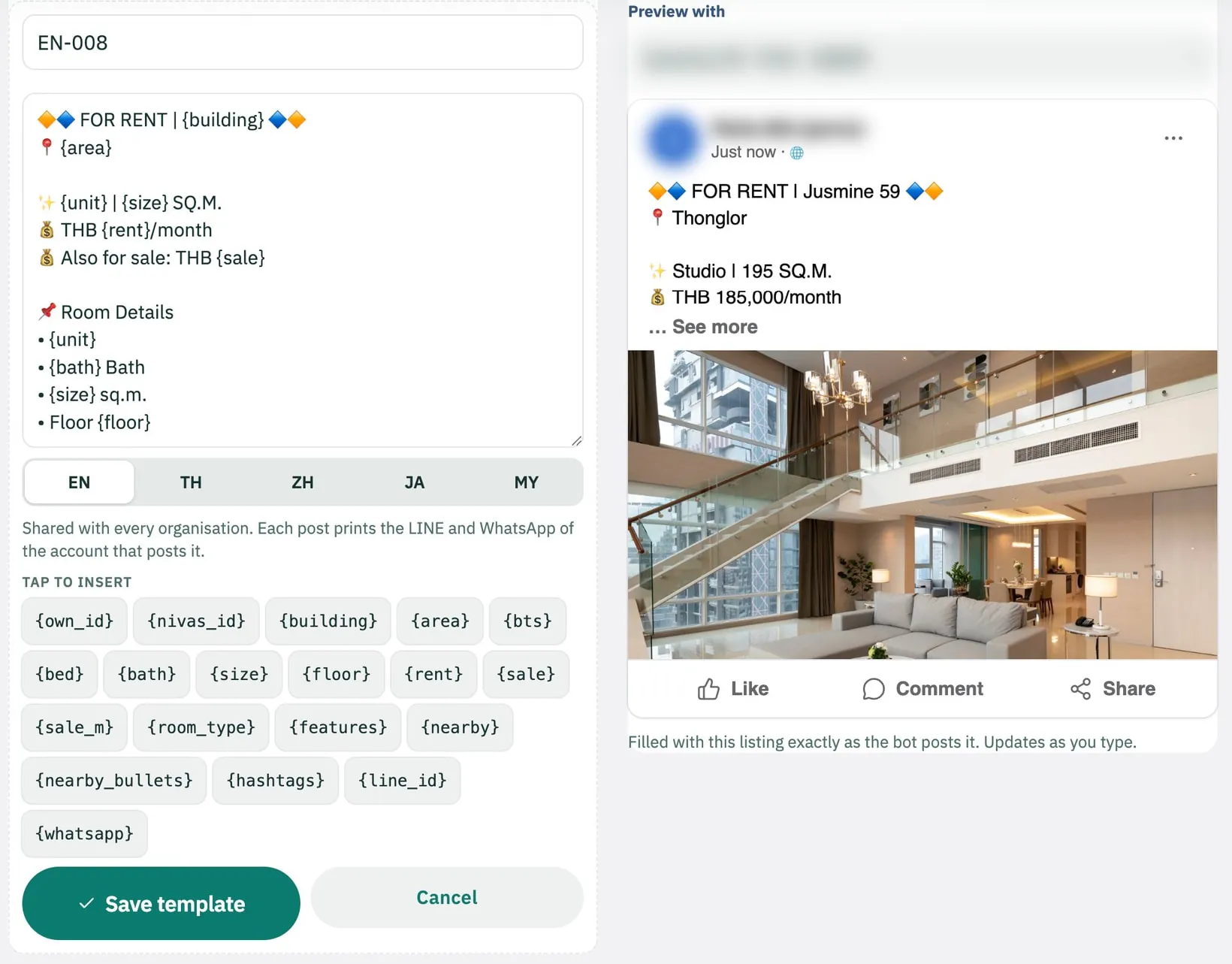
Templates with a live Facebook previewPilot: Live with the founding agency and invited testers. Not self-service yet.
Placeholders for the building, area, size, rent or sale price, floor and what is nearby, and the posting account’s LINE and WhatsApp. Ready templates in English and Thai; write your own in any of the app’s five languages.
In the app Ultimate Post › Templates.
The NIVAS Bot desktop app
A small app on your own computer, posting with your own Facebook account. Nothing posts from a NIVAS server, so the computer stays on while it works.
In the app For invited members; paired in Settings › Computers.
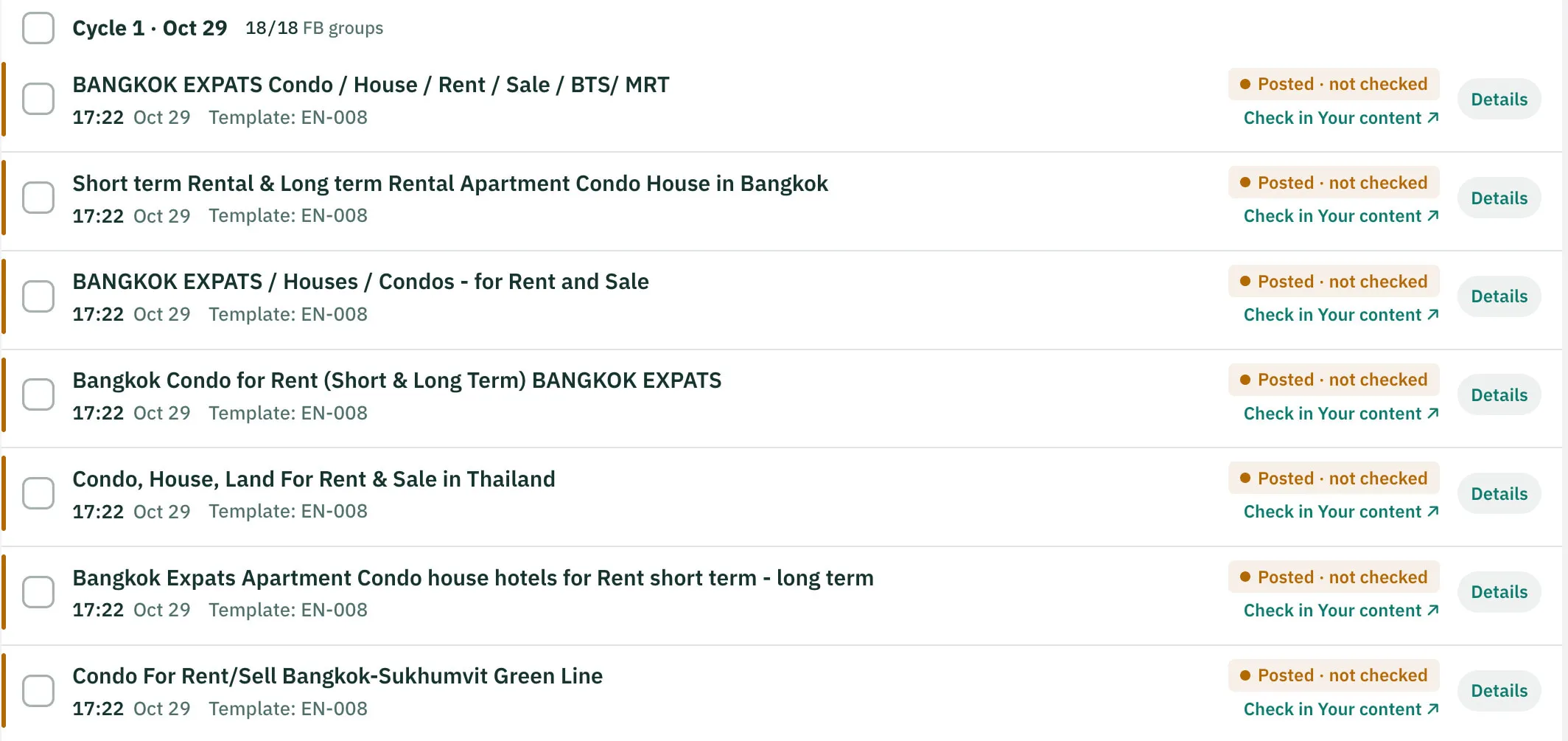
HistoryPilot: Live with the founding agency and invited testers. Not self-service yet.
Every post is listed per group as “Posted · not checked”, with a link to open it in Your content. NIVAS does not check posts for you.
In the app Ultimate Post › History.
Related guidesFacebook Posting Install the NIVAS Bot
Pages for your clients, and your card.
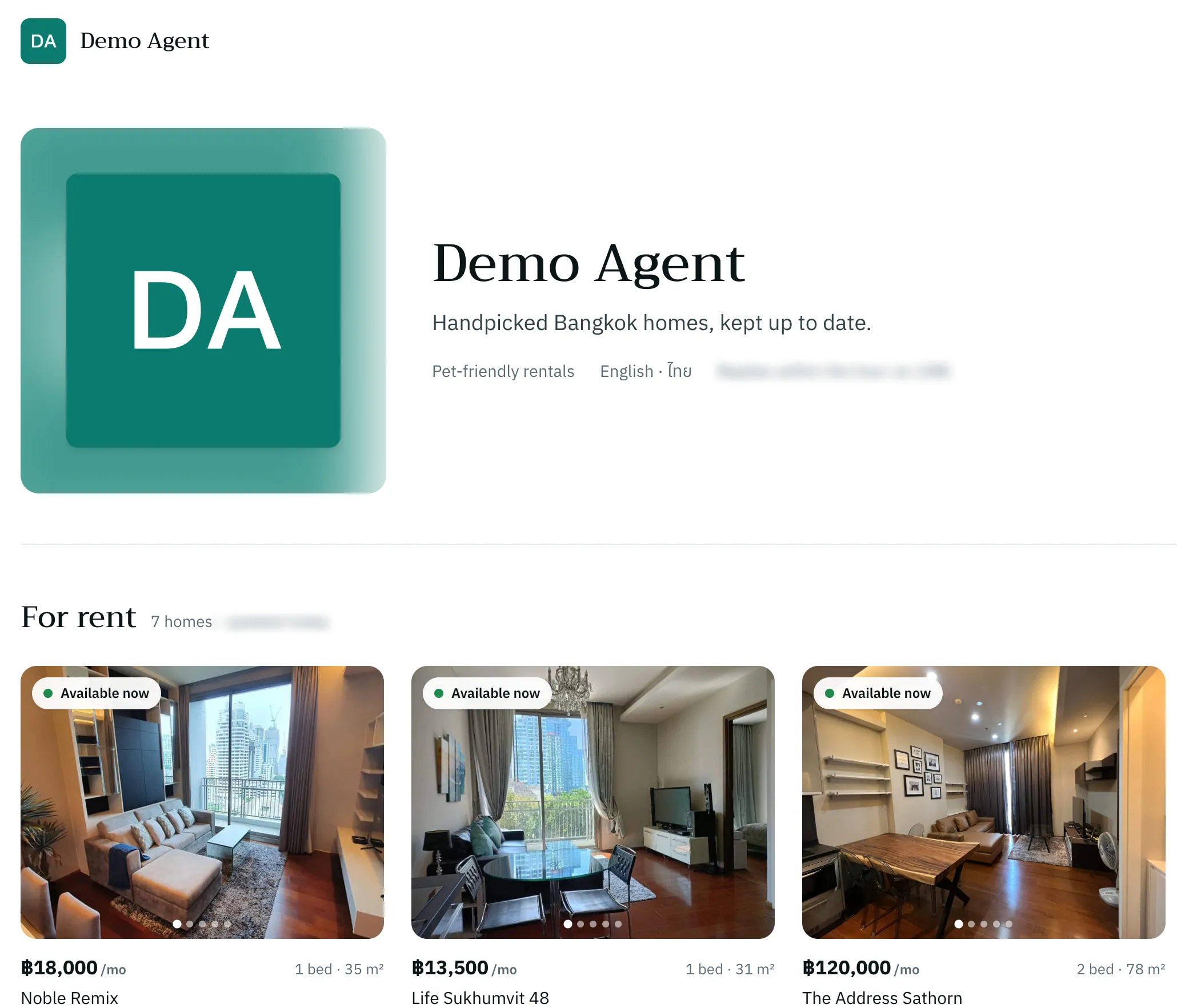
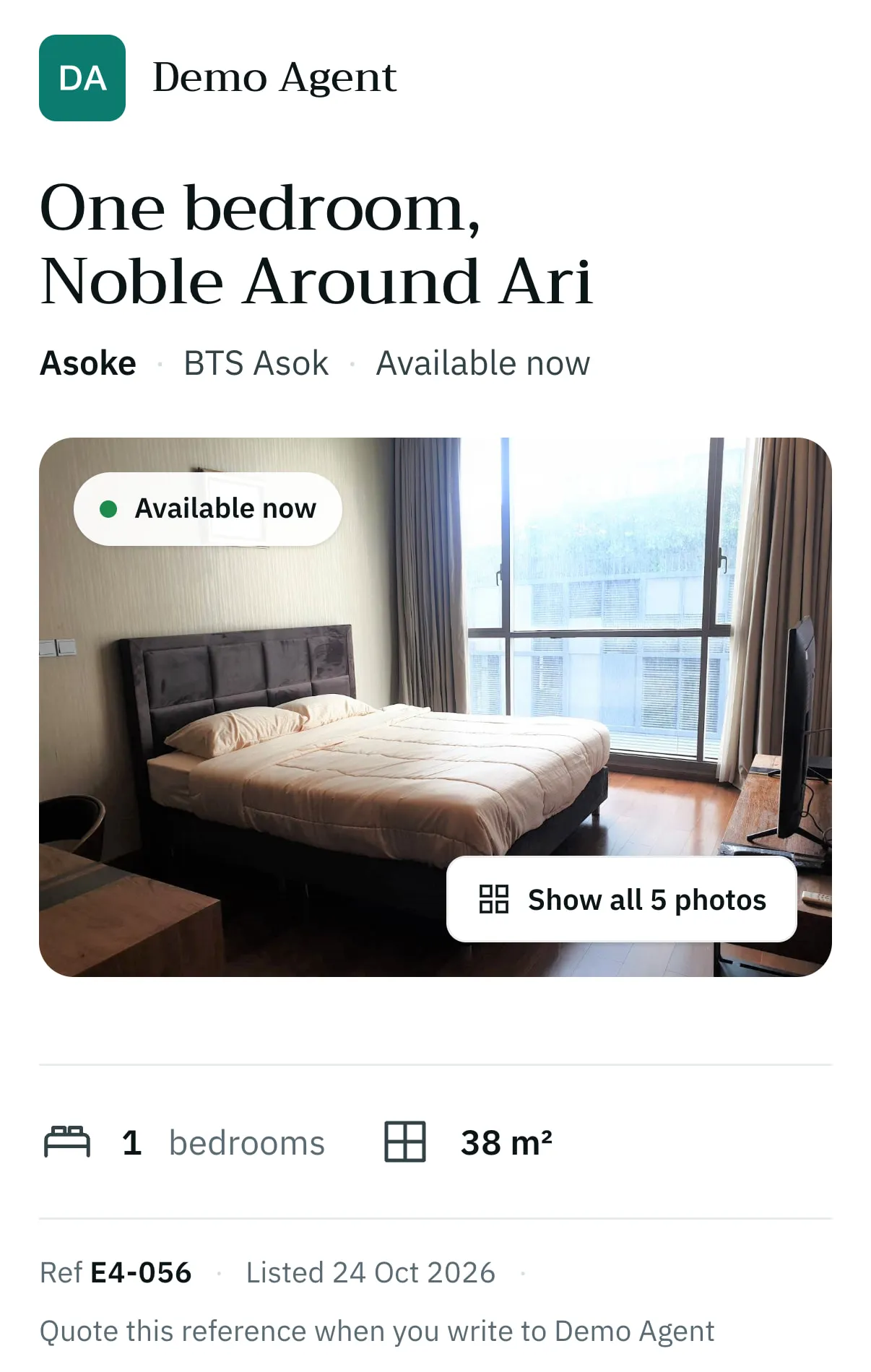
Pages that carry your name, never NIVAS: your showcase page, a page for one listing with Book a viewing, and your digital card.
My showcase page
Your own page for clients, with your listings For rent and For sale, in the Classic or the Apple style, and building names shown or hidden as you choose.
In the app Home › Edit my page.
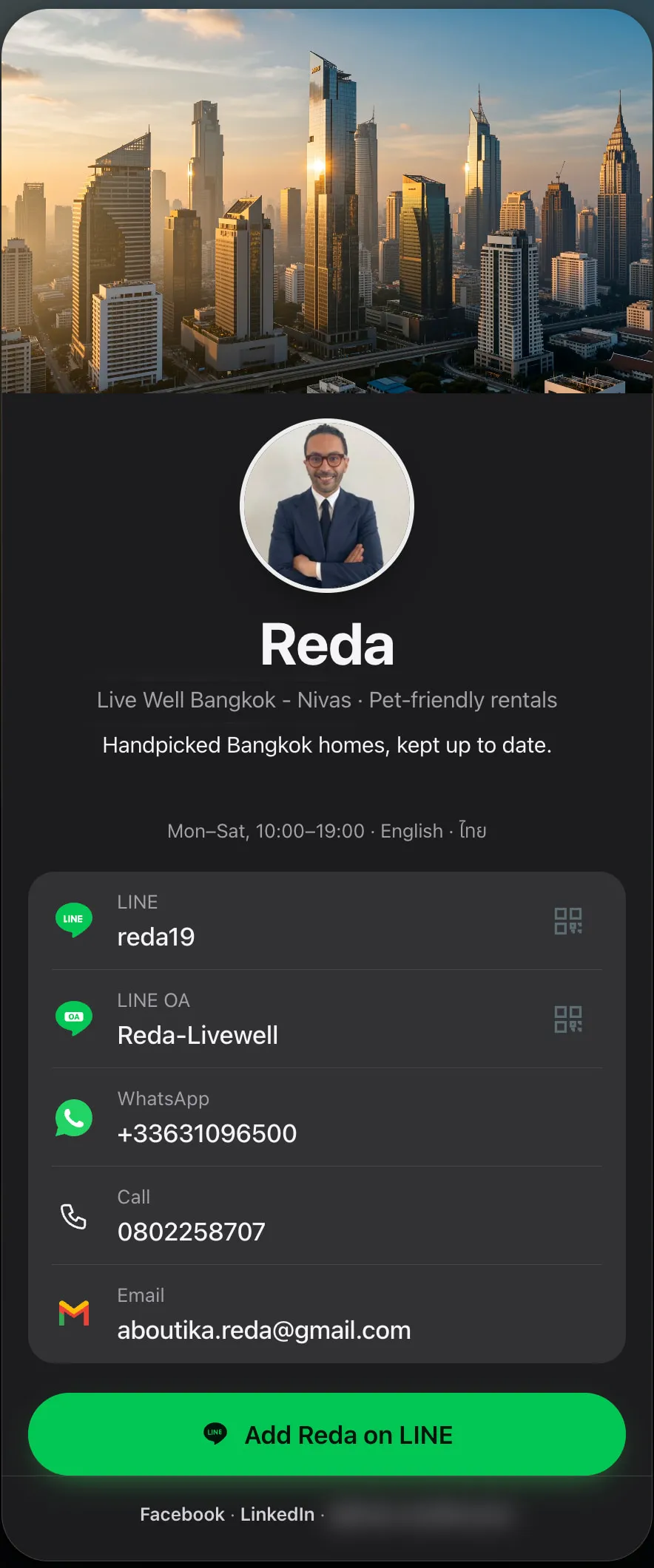
My card
Your digital contact card: portrait, cover, tagline, working hours and languages, only the channels you fill (LINE, LINE OA, WhatsApp, Call, Email), QR codes for LINE, LINE OA and WhatsApp, and a button to add you on LINE.
In the app Profile › My card; Share my card sends its public link.
Related guidesGetting Started· Guides coming soon
04
Client & Deal Management
Work files, your own deal pipeline and your Calendar: follow each of your deals, from registered to paid.
One work file per client need.
Follow each client from the first call to the viewing, with the listings you propose in the same place. Files are private to your seat.
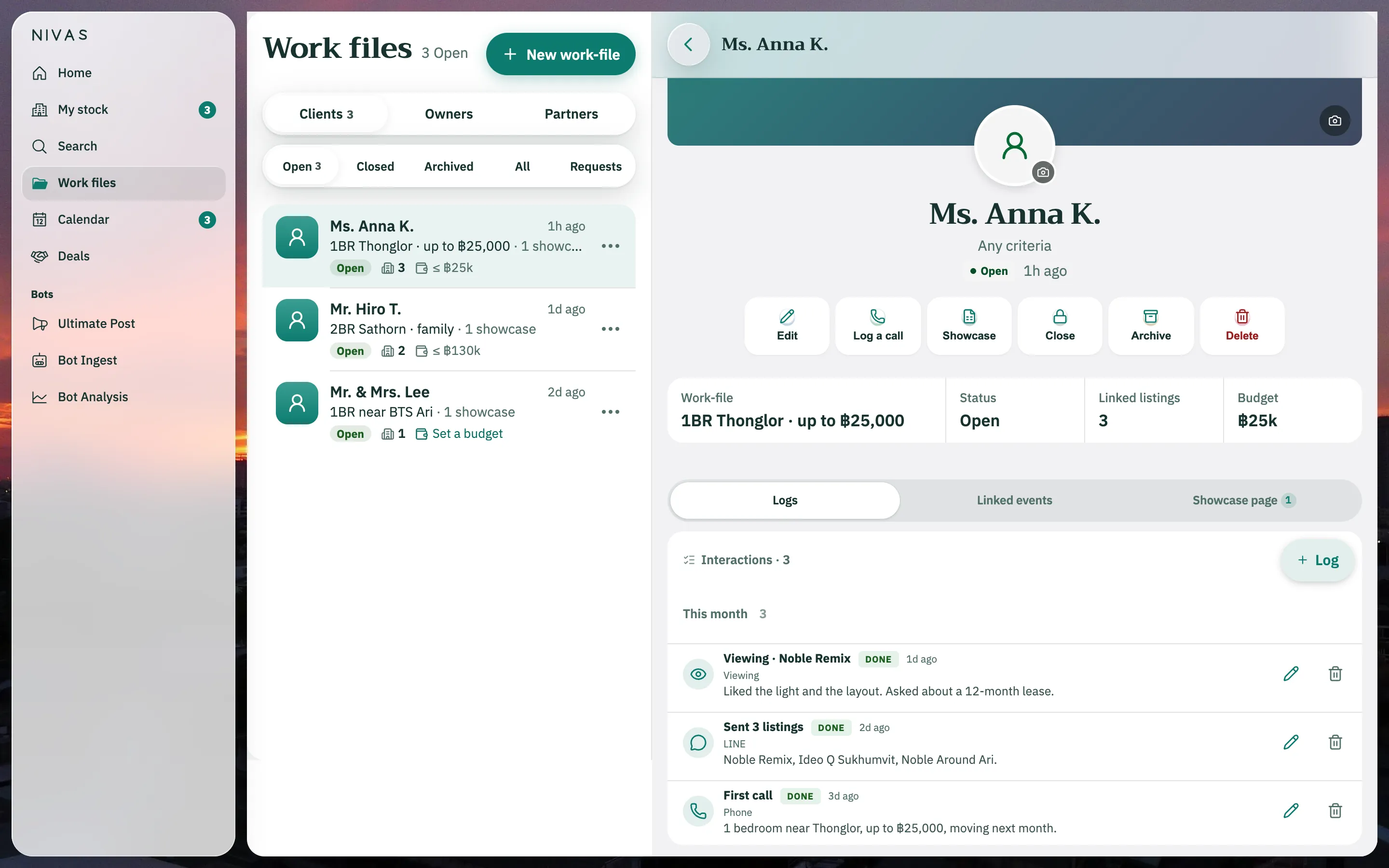
Work files
One work file per client need. Sort them by Clients, Owners and Partners, and by Open, Closed, Archived or Requests. Each file keeps its Logs (calls, viewings, emails), its Linked events and its Showcase page.
In the app Work files. “Requests” are clients’ viewing requests from your share page.
Client lists from the Sheet
Select listings in the Sheet and add them to a client list from the bulk bar.
Related guidesWork Files· Guides coming soon
Your Calendar, fed by your deals.
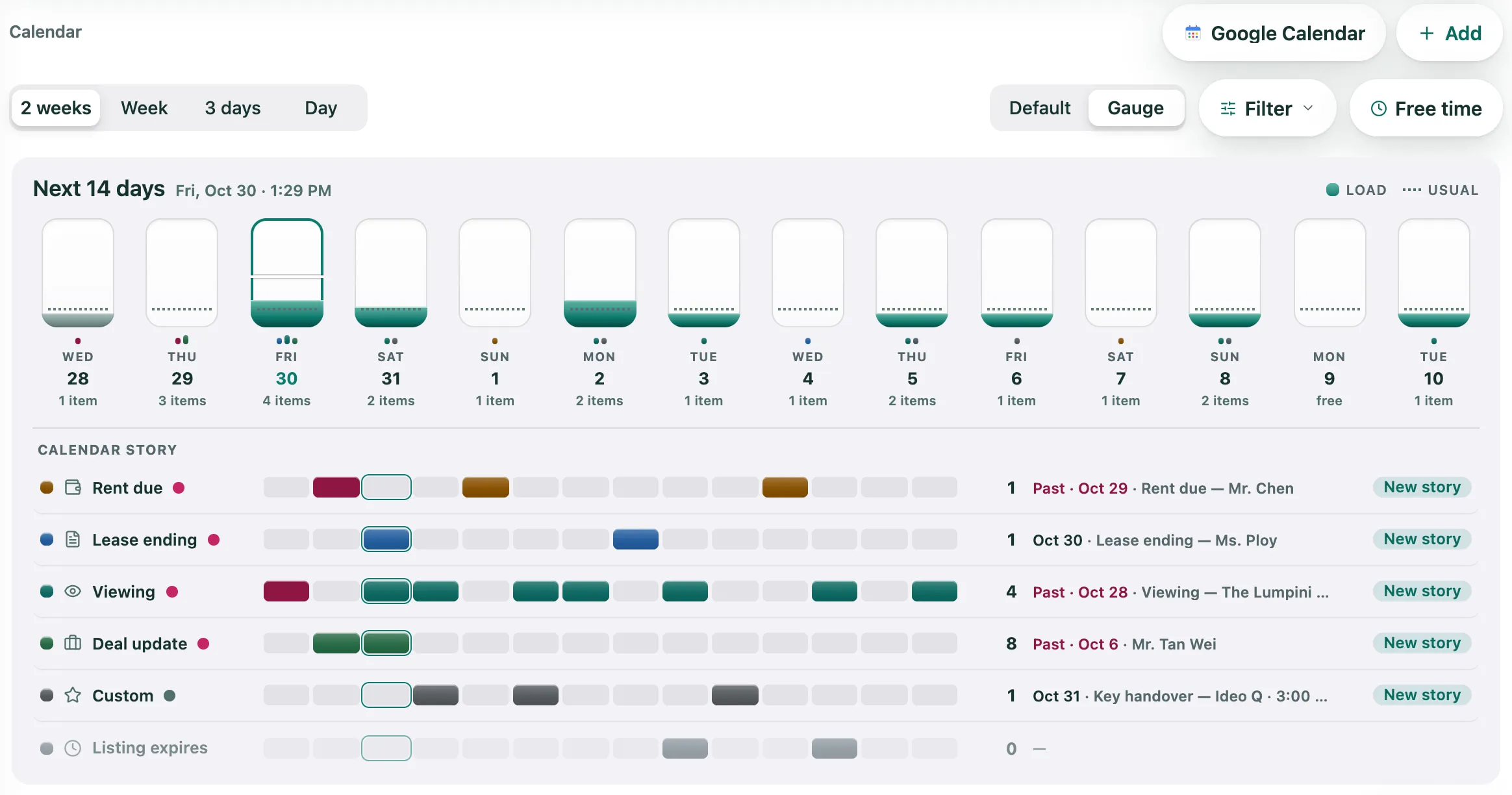
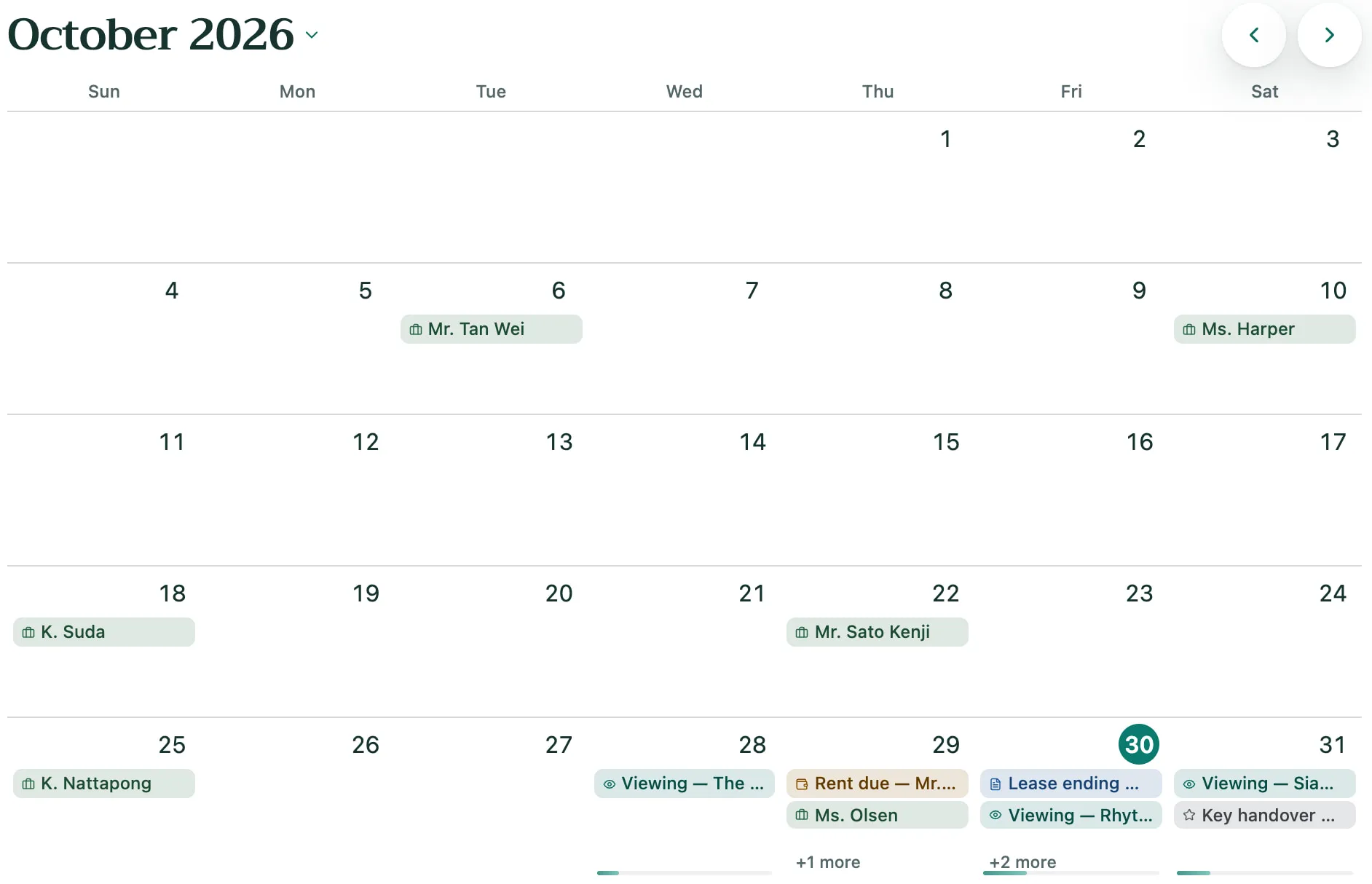
Rent due and lease endings from your closed rent deals, deal updates, listing expiry dates and viewings confirmed from your showcase are added for you, with reminders in the app.
Calendar
2 weeks (or Month) · Week · 3 days · Day, with a daily load gauge, a Free time finder and a story per category. Rent due and Lease ending come from your closed rent deals; deal updates, listing expiry dates and viewings confirmed from your showcase are added for you; your own entries by hand. Reminders in the app.
In the app Calendar. Import your Google Calendar (one-way, read-only copy) from an .ics file; re-import to refresh.
Related guidesGetting Started· Guides coming soon
Your deals, on a screen of their own.
Your own deal pipeline, private to you.
Deals
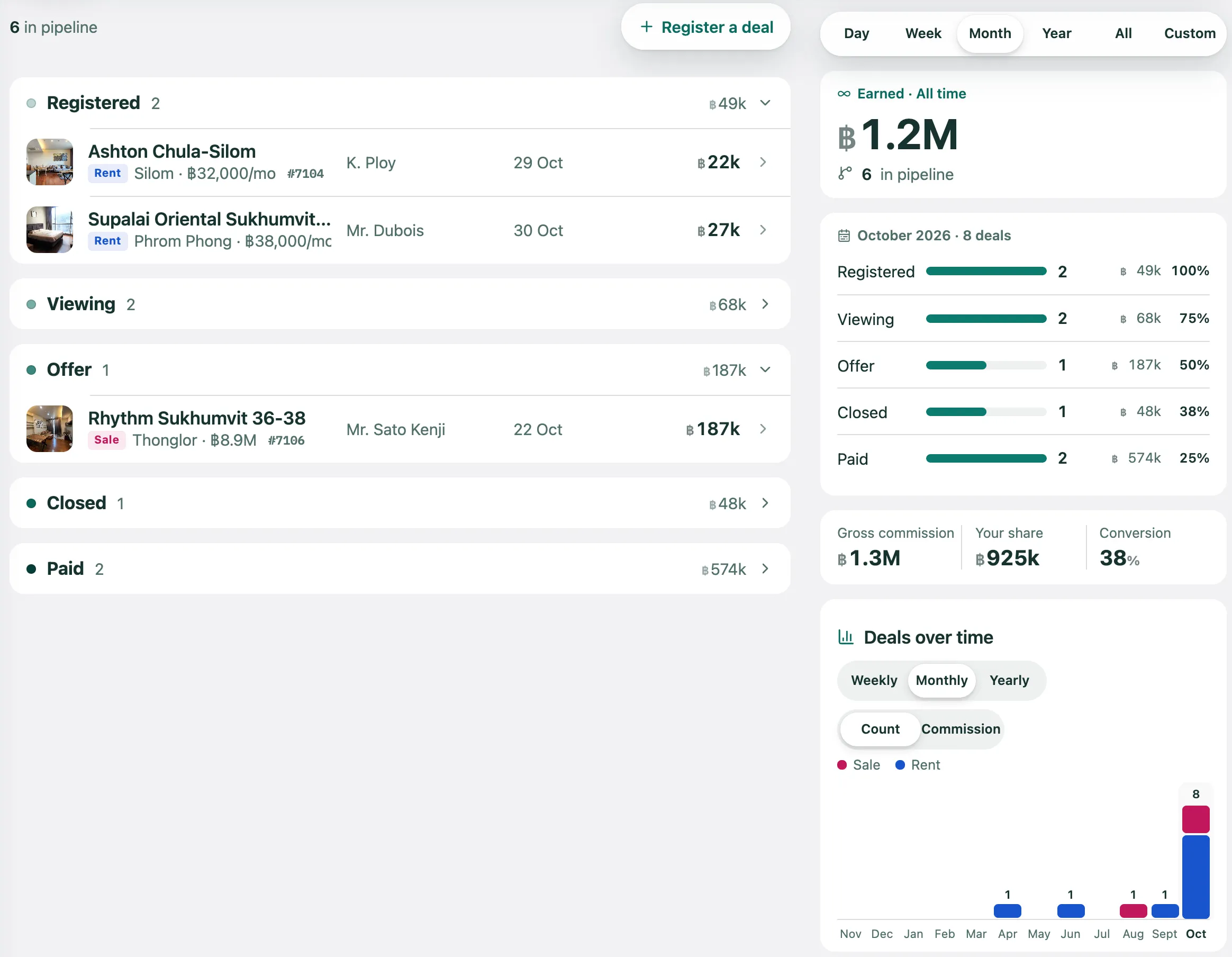
Your own pipeline (Registered › Viewing › Offer › Closed › Paid) for a Day, Week, Month, Year, All or a Custom period: Earned (all time), what is in the pipeline, the gross commission and your share (your co-broke split), your conversion, and your deals over time by count, sale and rent. Each agent’s deals are private to that agent.
In the app Deals › Register a deal, from an approved co-broke or one of your own listings.
Home
Your monthly goal (what you have earned against your target), your stock at a glance, and one-tap keys to the Sheet, Ultimate Post, Add listing, Buildings, Deals, the Map and your showcases.
In the app The goal is your own: Sales + Rent, Sales or Rent.
- 1Registered
- 2Viewing
- 3Offer
- 4Closed
- 5Paid
The five stages of a deal. Each agent sees only their own deals.
Related guidesDeals· Guides coming soon
05
Agency Operations
For freelance agents and growing teams: invitations and seats, what the agency shares, how it oversees held listings and campaigns, and what stays private to each agent.
One agency, every agent in a seat.
NIVAS is set up per agency: one invitation code, a seat for each agent, and clear lines between what the team shares and what stays private.
Invitation and seats
NIVAS is invitation only. Each agency or group receives its own invitation code; the agency then adds its agents as seats. Seats added by the agency need no invitation code.
In the app Request an invitation by e-mail; we reply personally.
What the agency shares
The agency sets whether its new listings are shared in the pool by default, and can apply it to every listing at once. Any listing can still be switched to Private.
In the app Settings › Shared pool: “New listings visible in the pool” and “Apply to all my listings”.
One Sheet layout for the team
The agency can set a shared default layout of the Sheet; anyone can keep a custom one.
In the app My stock › Sheet.
Several posting accountsPilot: Live with the founding agency and invited testers. Not self-service yet.
Connect several Facebook posting accounts, each with its own pace. The agency sees every one of its campaigns in Ultimate Post › Active and can Pause, Resume or Stop it.
In the app Ultimate Post › Active. Each account posts from the computer it is paired with.
Team oversight
The agency manages its seats, reviews held listings, sets its sharing default and oversees its Facebook campaigns.
In the app My organisation (members) · held listings “To review” (Restore or Reject) · Settings › Shared pool · Ultimate Post › Active.
Team calendar entries
On company accounts, a calendar entry can be shared with the team; the others see it as a team event, view only.
In the app Calendar › Add › Share with team.
Private where it matters
Each agent’s Work files and Deals are private to that agent.
In your language
The app works in Thai, English, Chinese, Japanese and Burmese.
In the app Post templates are ready in English and Thai; write your own in any of the five languages.
Related guidesGetting Started· Guides coming soon

Bring your Bangkok real-estate workflow together.
NIVAS is by invitation, for agencies and freelance agents in Bangkok. Tell us how you work and we will get back to you.
- 1You send this request For your agency, or as a freelance agent.
- 2We reply personally To the e-mail address you give.
- 3Your own code Your agency or group receives its own invitation code; the agency then adds its agents as seats.